How to Remove Censor from an Image: What Actually Works (and What Doesn't)
Have you ever edited a photo, covered part of it with a black bar, a sticker or a blur, and then realised you need the original back? Or received an image with a blocked-out area and wondered whether the hidden part can be recovered? The honest answer depends on how the censor was applied, and in many cases the information is simply gone.
This guide explains what can and cannot be undone, how to fix your own photos, and how to hide private details so they stay hidden. It is written for people working with their own images and documents.
Can a Censor Be Removed From an Image?
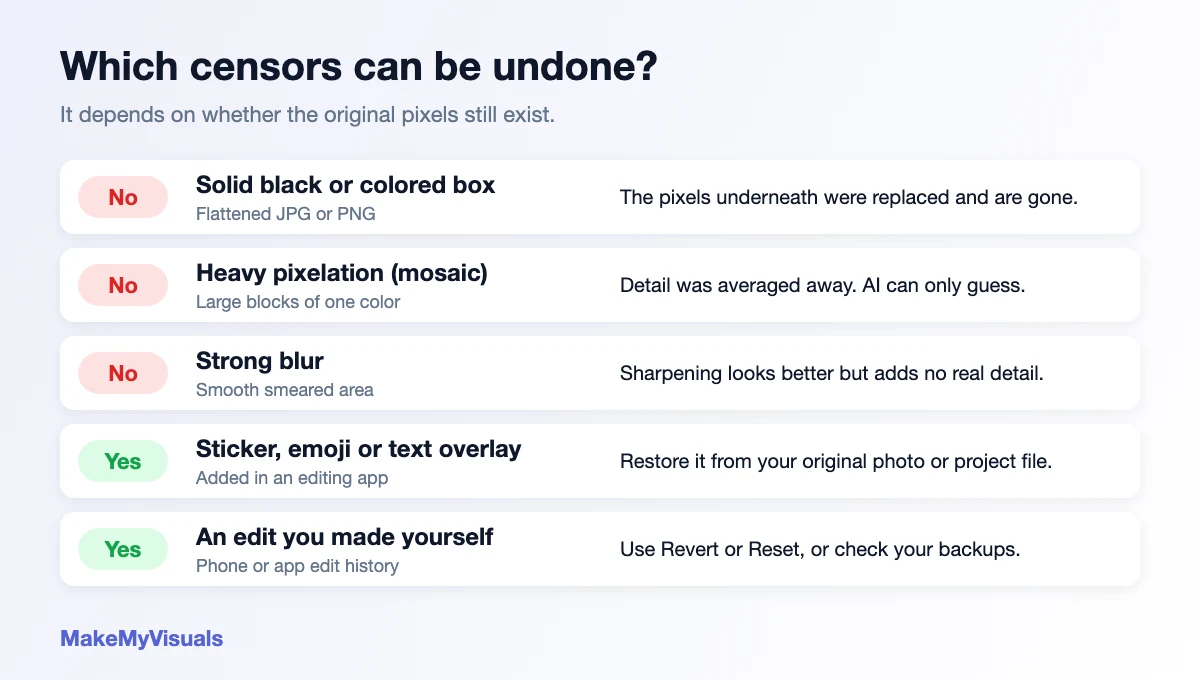
Think of a censor as one of two things: an effect that covers the picture, or an effect that destroys part of it. Only the first can be undone.
- Solid black or colored box on a flattened JPG or PNG: cannot be undone. The pixels underneath were replaced when the file was saved. There is nothing left to recover.
- Heavy pixelation or mosaic: cannot be reliably undone. Each large block replaces many original pixels with a single average color, so the detail is lost.
- Strong blur: cannot be reliably undone either. Sharpening can make the image look crisper, but it does not bring back information that blur removed.
- Stickers, emoji and text added in an editing app: can be removed if you still have the original photo or the editable project file.
- Edits you made yourself: often reversible through your phone's edit history or a backup of the original.
Why "AI Decensor" Tools Are Misleading
Some tools claim that artificial intelligence can reveal what is behind a blur or a bar. What these tools actually do is invent plausible-looking pixels based on patterns they were trained on. The result can look convincing, but it is a guess, not the original. It can show the wrong face, the wrong text or details that were never there, so it should never be treated as evidence or as a real recovery.
How to Get Back Your Own Original Photo
- Check your phone's edit history. In the Photos app on iPhone and Android, open the photo, choose Edit and look for Revert or Reset to return to the original.
- Look in your backups. Google Photos, iCloud and OneDrive often keep the unedited upload. Search your trash and recently deleted folders too.
- Open the project file. If you edited in a design app, the censor may sit on its own layer that you can hide or delete.
- Ask the sender. If someone shared the image with you, ask them for the uncensored original. They are the only reliable source.
Make a Blurry or Pixelated Photo Look Cleaner
If your goal is simply a nicer-looking image, not revealing hidden content, a few free tools help. They improve how the picture looks, but they do not recover what was lost.
- Use the Image Sharpener to add crispness to a slightly soft photo.
- Use the Pixelation Smoother to soften blocky edges in a low-resolution image.
- Use the AI background remover to cut out a subject cleanly or replace a distracting background.
- Resize with the image resizer and reduce the file size with the auto compressor before you share it.
How to Censor an Image Properly
If you are the one hiding information, such as a name, address, number plate or account number, do it in a way that cannot be reversed.
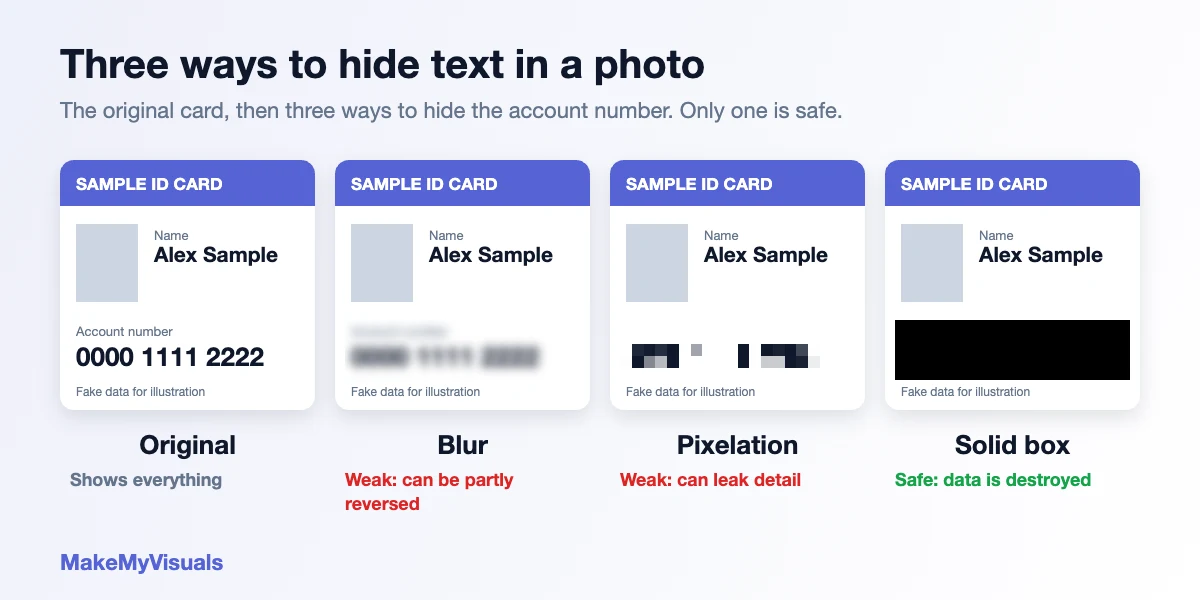
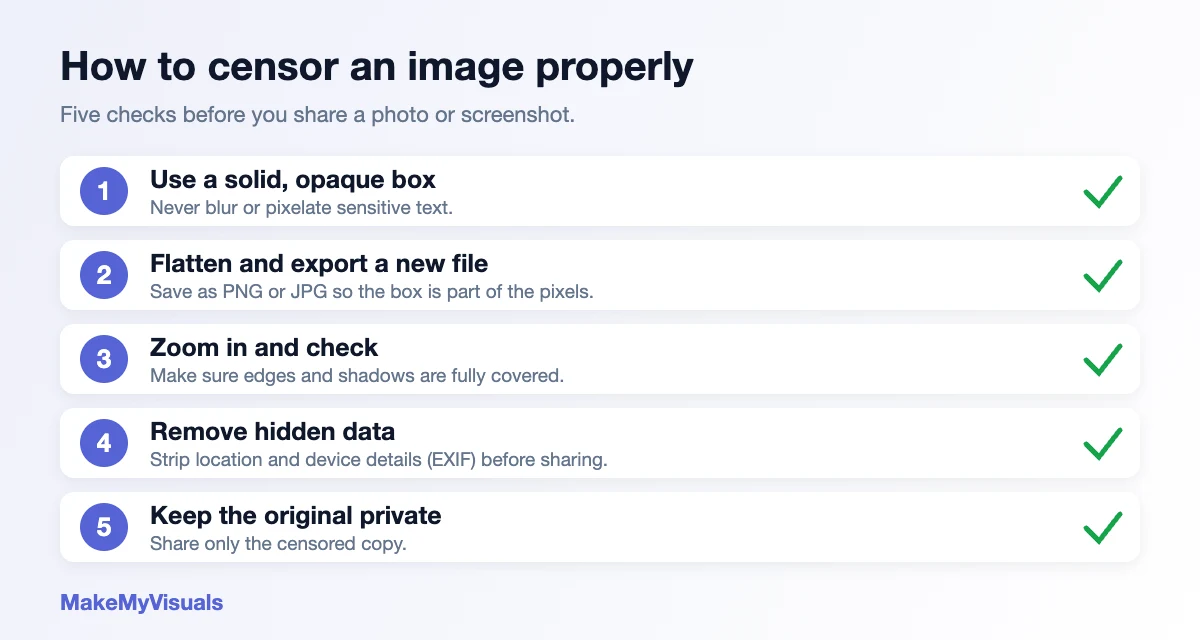
- Use a solid, fully opaque box. Do not use blur or pixelation for sensitive text. Those can sometimes be partially reversed.
- Flatten and export. Save the final image as a new PNG or JPG so the box is part of the pixels and not a separate layer.
- Check the result. Reopen the exported file and zoom in. Make sure the box fully covers the text, including edges and shadows.
- Remove hidden data. Photos can carry location and device details. Strip them with the EXIF Remover before sharing.
- Keep the original private. Store the uncensored version somewhere safe and only share the censored copy.
Respect Privacy and Consent
Do not try to reveal content that someone deliberately hid. Removing a censor from another person's image, especially a private or intimate one, can violate their privacy and the law in many countries. If you appear in an image that has been shared without your consent, contact the platform to report it and request removal.
Frequently Asked Questions
Can you remove a black box from a JPG? No. Once a black box is saved into the pixels, the original data under it is gone.
Can a blurred photo be fully restored? No. You can sharpen it so it looks better, but the lost detail cannot be recovered. Any extra detail added by an AI tool is a guess.
How do I remove a sticker from my own photo? Go back to the original photo or the project file in the app where you edited it, then export again without the sticker.
What is the safest way to hide text in a screenshot? Cover it with a solid opaque box, export a new image, and check it by zooming in before you share it.
Edit Your Photos With MakeMyVisuals
Explore the free image tools at MakeMyVisuals to sharpen, resize, compress and clean your own photos, with no software to install.
Related Guides & Articles
- How to Create a Professional Email Signature with Your Name
- Top 5 Viral Instagram Photo Editing Styles for 2026
- How to Price Your Freelance Design Work (Without Underselling Yourself)
- Image Compression Explained: How to Shrink File Size Without Losing Quality
- Photo Size Converter in KB: How to Compress Images to Exact Targets Without Losing Quality
- How to Resize a Signature Image for Online Forms and Documents