How to Create a Professional Email Signature with Your Name

Why Your Email Signature Matters
Think of your email signature as more than just a block of text sitting at the bottom of your messages. It’s essentially a digital business card that shapes how people perceive you the moment they click open. Every time you hit send, that signature acts as a silent anchor, confirming your identity, your role, and your professional standing.
Crafting a thoughtful signature signals to your recipient that you care about the details. It tells them you value precision in every facet of your work. Most people treat this space as an afterthought, but by taking control of it, you gain a massive, untapped opportunity to cut through the noise of a crowded inbox.
Establishing Your Personal Brand
Every single interaction is a chance to sharpen your personal brand. When your name is consistently paired with clean, clear, and professional imagery, you start building a foundation of trust before a meeting even kicks off. View your signature as the final, polished touch that makes your correspondence feel official, cohesive, and intentional.
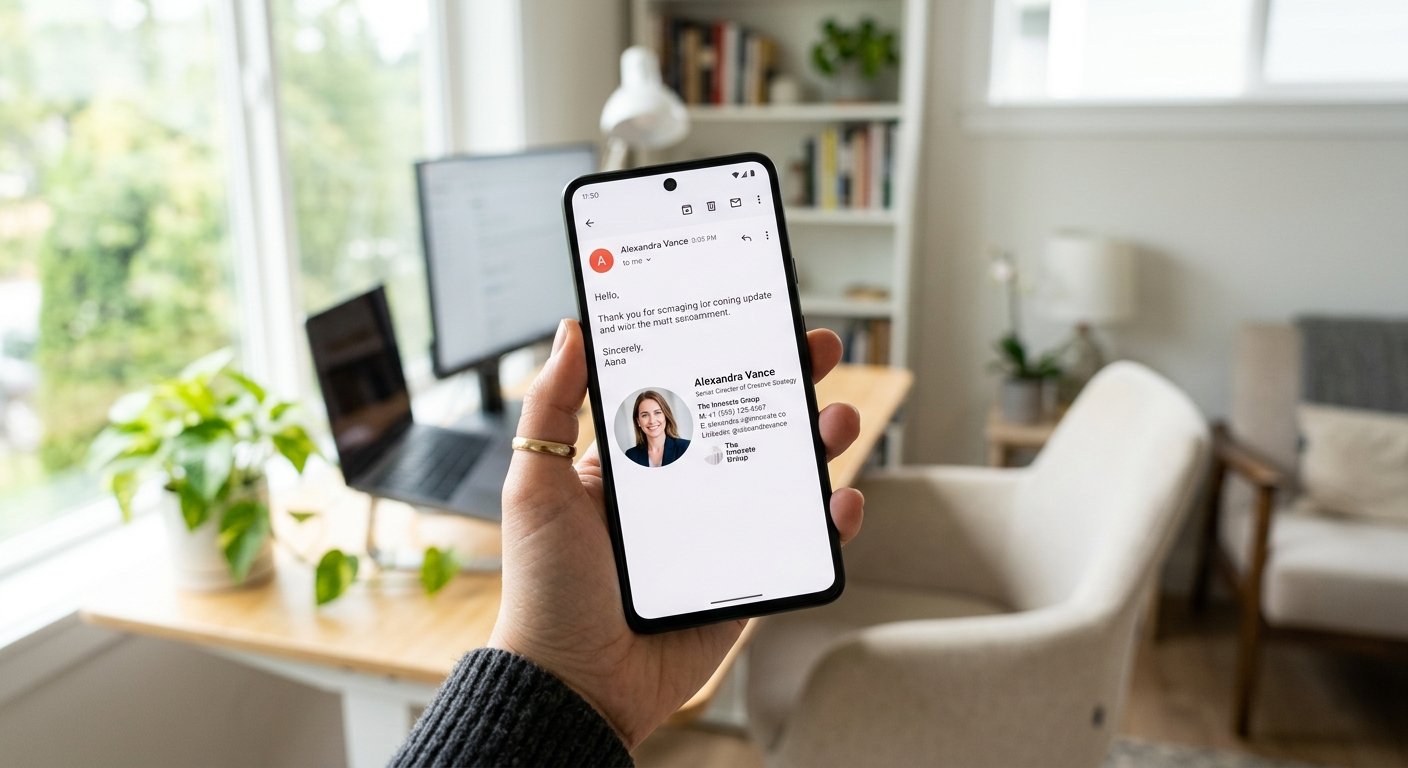
To really nail that look, keep things uncluttered. Rely on clean fonts, a high-quality professional headshot, and direct links to your primary platforms. Avoid the urge to over-complicate it with messy galleries of images or wild color palettes that end up distracting the reader from your actual contact info.
The First Impression Rule
Human beings are wired to be visual creatures. We often scan the footer of an email faster than we read the actual body of the message. If that section looks disorganized or lacks your name, the whole email feels amateurish. You want the person on the other end to know exactly who they’re dealing with the split-second they glance down.
Definitely include a professional headshot if you have one. If your current photo is bogged down by a busy or distracting background, use an AI background remover to strip that out and create a clean, minimalist aesthetic. A high-quality portrait is an absolute game-changer for building rapport.
Designing for Visual Clarity
Visual balance is the secret sauce behind a killer signature. You don’t want your contact details and images fighting for dominance. Instead, build a layout that naturally guides the reader's eye: start with your name, move to the contact info, and wrap up with your social or professional links.
Keep your contact details tight. Stick to the essentials: your full name, job title, and company name. Adding your phone number and a clean link to your website is smart, but resist the urge to include inspirational quotes or laundry lists of your past accomplishments. Less is almost always more.
Choosing the Right Image Format
Images in email signatures can be a headache if you aren't careful. If your file size is too heavy, your email might load sluggishly or even trigger spam filters. You’ve got to balance visual quality with technical speed. Use our auto-compress tool to make sure your headshot stays lightweight and renders perfectly, regardless of the recipient’s device.
Pay attention to the file format, too. PNGs are usually the gold standard for transparent elements, but you can lean on our format converter to ensure your assets are in the most compatible type for platforms like Outlook, Gmail, and Apple Mail. You don’t want your branding breaking just because the tech didn't align.
Optimizing for Mobile Devices
More than half of all emails today are opened on a phone. If your signature is too wide or has images that don't scale properly, it’s going to look broken the moment it hits a mobile screen. Keep your design responsive by using a vertical layout and sticking to standard, web-safe fonts.
Always test your signature on your phone after you finish the build. Is the text actually readable? Do the icons look crisp, or are they a blurry mess? If you see pixelation, grab an image resizer and tighten up those dimensions so they look sharp on high-resolution smartphone displays.
Adding Your Signature to Your Client
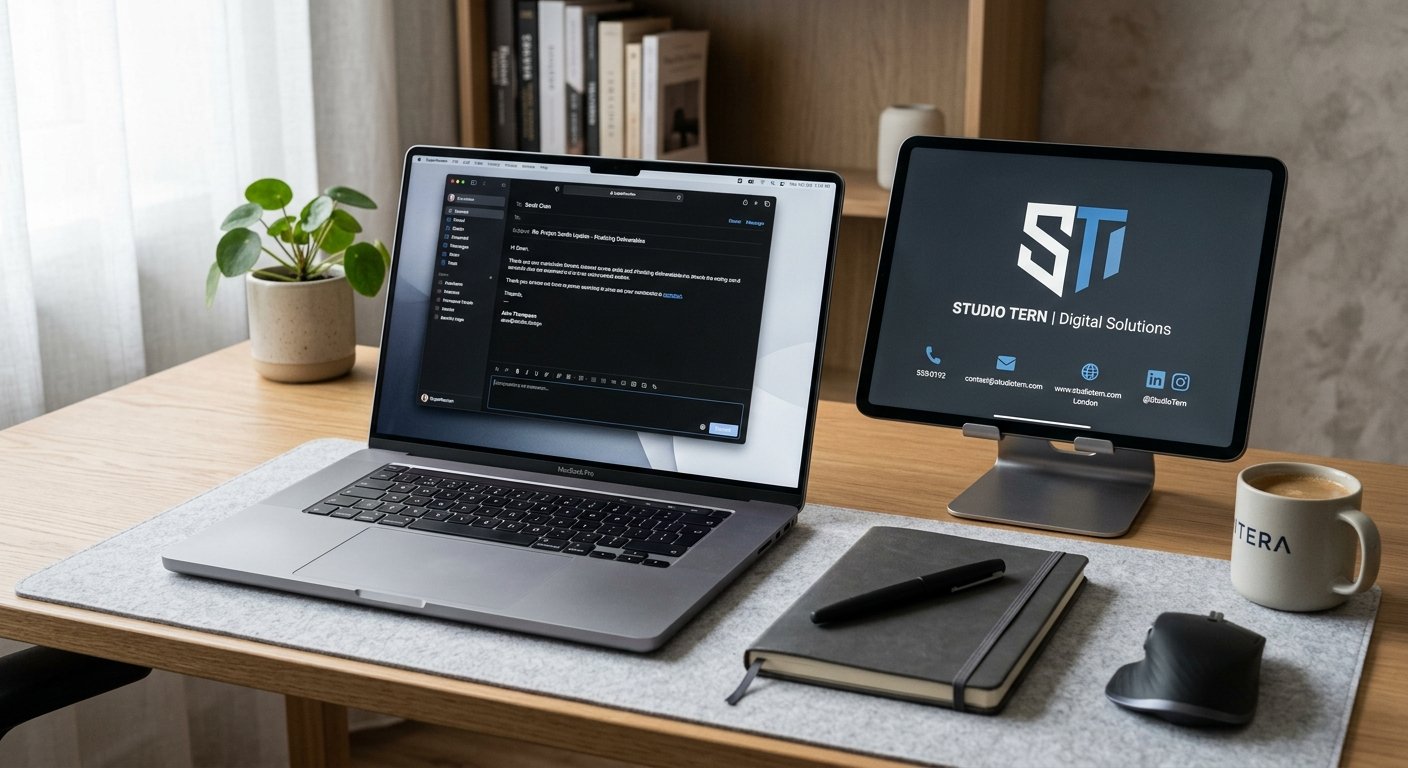
Once you’ve nailed the design, the final step is the technical integration. Every email provider has a slightly different way of doing things, so take your time. Whether you’re on Gmail, Outlook, or a custom webmail interface, head straight for the 'Settings' or 'Signature' tab in your preferences.
Here’s a pro tip: don’t just copy and paste an image into that box. It’s significantly safer to upload your optimized image files directly or use a clean HTML signature template. This prevents the images from breaking or showing up as annoying, separate attachments every time you send a message.
Maintaining Consistency Across Platforms
Your branding should feel like the same person across every channel. If you’re using a specific headshot or color scheme on LinkedIn, use that exact same one in your email. Consistency breeds instant familiarity. When people see that same visual identity show up in multiple places, your name sticks in their mind much faster.
If you notice that your portrait colors feel a bit "off" compared to your other brand materials, use our recolor cloth tool. It helps you tweak the tones so everything matches your official palette perfectly. These small, meticulous adjustments are exactly what create that high-end, cohesive feel.
Avoiding Common Signature Mistakes
The number one mistake people make is pure over-cluttering. They try to jam every single phone number, social handle, and promotional banner into their signature. Stop that. It turns your professional sign-off into a digital billboard rather than a useful, clean identifier.
Another classic error is using obscure fonts that aren't installed on the recipient's machine. Stick to the classics like Arial, Helvetica, or Georgia. These web-safe fonts guarantee that your signature will look exactly how you intended it, regardless of what computer the other person is using.
What to Keep Minimalist
Keep your links purposeful. If you have five different social media profiles, pick the two that actually drive value for your work. Your email signature acts as a navigation tool—it isn't meant to be an exhaustive, exhaustive directory of your entire online history.
If you’re including a company logo, don't let it steal the show. Your name and your title should always be the priority. Use the product studio if you need to refine your logo so it fits seamlessly into the signature block without feeling like an oversized graphic.
Using Specialized Tools for Perfection
You don't need to be a trained graphic designer to build a stunning signature. Most people spend hours wrestling with alignment, only to end up frustrated. Using the right set of tools simplifies the heavy lifting and lands you a professional, high-end result in just a few minutes.
For example, if you want a stylized, handwritten version of your name, our signature maker can turn your real handwriting into a clean, digital asset. It adds that human, personal touch that a generic computer font simply cannot replicate.
When You Need More than Just a Signature
Sometimes, your branding needs spill over into other things. You might need invoices, proposals, or documents that share that same aesthetic. Our smart doc assistant can help you organize and format those files so they stay just as polished as your email signature.
By relying on consistent tools, you ensure every document you touch carries that same high standard. That level of meticulous, visual consistency is the single biggest thing that separates an amateur from a polished, seasoned professional.
Frequently Asked Questions (FAQ)
Can I use my handwritten signature in my email?
You definitely can. A digitized handwritten signature adds a unique, human flavor to your professional correspondence. Just use our signature maker to digitize your handwriting, then resize it so it drops perfectly into your signature block.
What is the ideal image size for an email signature?
For any headshot or logo in an email signature, keep that file size under 50KB to ensure your emails don't slow down. Try to keep the dimensions under 300x300 pixels. Use our image resizer to snap your photos to those exact specs quickly and easily.
How do I make my headshot look more professional?
A professional look starts with a clean background. Use our background remover to eliminate any visual clutter behind you. Then, drop in a clean, solid background color. This ensures the focus stays entirely on you, not the messy room you were standing in.
Do I need to update my signature often?
Keep updates infrequent. Only change your signature if your contact info, role, or company branding shifts. Consistency is your best friend when it comes to recognition. Avoid tweaking the layout every few weeks, or you’ll just confuse the people who contact you regularly.
Will my signature look the same on all devices?
Using web-safe fonts and optimizing your images is the best way to ensure consistency across the board. That said, different email clients like Outlook and Gmail process formatting in their own ways. Always send a test email to yourself to check how it renders on both your desktop and your phone before you call it finished.
Ready to level up your professional presence? Start building your perfect signature right now. Whether you need to tighten up your portrait, compress your logo, or digitize your own handwriting, MakeMyVisuals gives you everything you need to look your absolute best. Dive into our suite of tools today and make your visual identity impossible to ignore.
Related Guides & Articles
- Top 5 Viral Instagram Photo Editing Styles for 2026
- How to Remove Censor from an Image: What Actually Works (and What Doesn't)
- How to Price Your Freelance Design Work (Without Underselling Yourself)
- Image Compression Explained: How to Shrink File Size Without Losing Quality
- Photo Size Converter in KB: How to Compress Images to Exact Targets Without Losing Quality
- How to Resize a Signature Image for Online Forms and Documents