JPEG vs PNG vs WebP: Which Format Should You Use and When?

Introduction
We’ve all been there: you’ve spent hours perfecting a design or taking the perfect product shot, but when you upload it to your site, it either looks grainy or—worse—takes forever to load. In the world of digital content, the file format you choose is just as important as the image itself.
Whether you are building an e-commerce empire or a personal blog, understanding the "Big Three" of image formats is a game-changer. At
Let’s break down the jargon and figure out exactly which format you should be clicking "Save As" on today.
1. JPEG (Joint Photographic Experts Group)
The "Old Reliable" of the internet. If you’ve taken a photo on your phone lately, it’s likely a JPEG.
Why it’s great:
JPEG uses lossy compression, which means it strips out data that the human eye can't easily see to keep file sizes small. This makes it the go-to for colorful, complex photographs.
Best Use Cases:
Photographs: Landscape shots, portraits, and vibrant scenery.
Social Media: Ideal for Instagram or Facebook where extreme detail isn't the top priority.
E-commerce: Great for standard product photos. If you want to dive deeper into this, learn more in our guide on
how to create professional product images for Amazon and Flipkart
The Downside:
Every time you save a JPEG, it loses a bit of quality. Also, it does not support transparency. If you need a cutout, JPEG is not your friend.
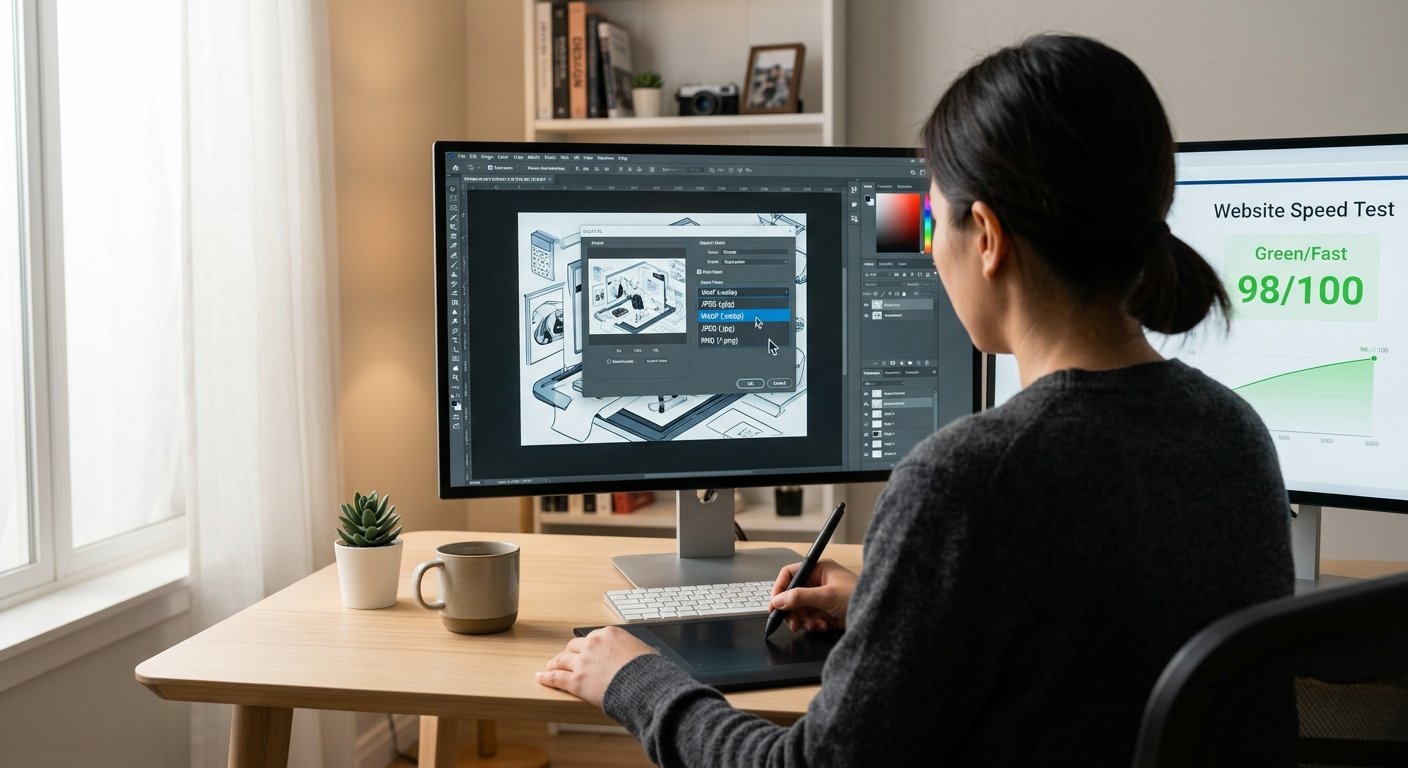
2. PNG (Portable Network Graphics)
The "High-Fidelity" choice. If JPEG is a radio broadcast, PNG is a lossless FLAC file.
Why it’s great:
PNG uses lossless compression, meaning no data is lost when the file is saved. Most importantly, it supports alpha channels (transparency).
Best Use Cases:
Logos & Icons: Anything that needs a transparent background to sit on top of different colors.
Screenshots: Since PNGs handle text and sharp edges perfectly, they are great for tutorials.
Graphics with Text: Avoid the "fuzziness" that JPEGs often give to small fonts.
The Downside:
File size. A high-res PNG can be 5–10 times larger than a JPEG. If you use too many, your page speed will tank. Before uploading, you might need to
3. WebP (The Modern Standard)
The "New King" developed by Google. WebP is designed specifically for the web.
Why it’s great:
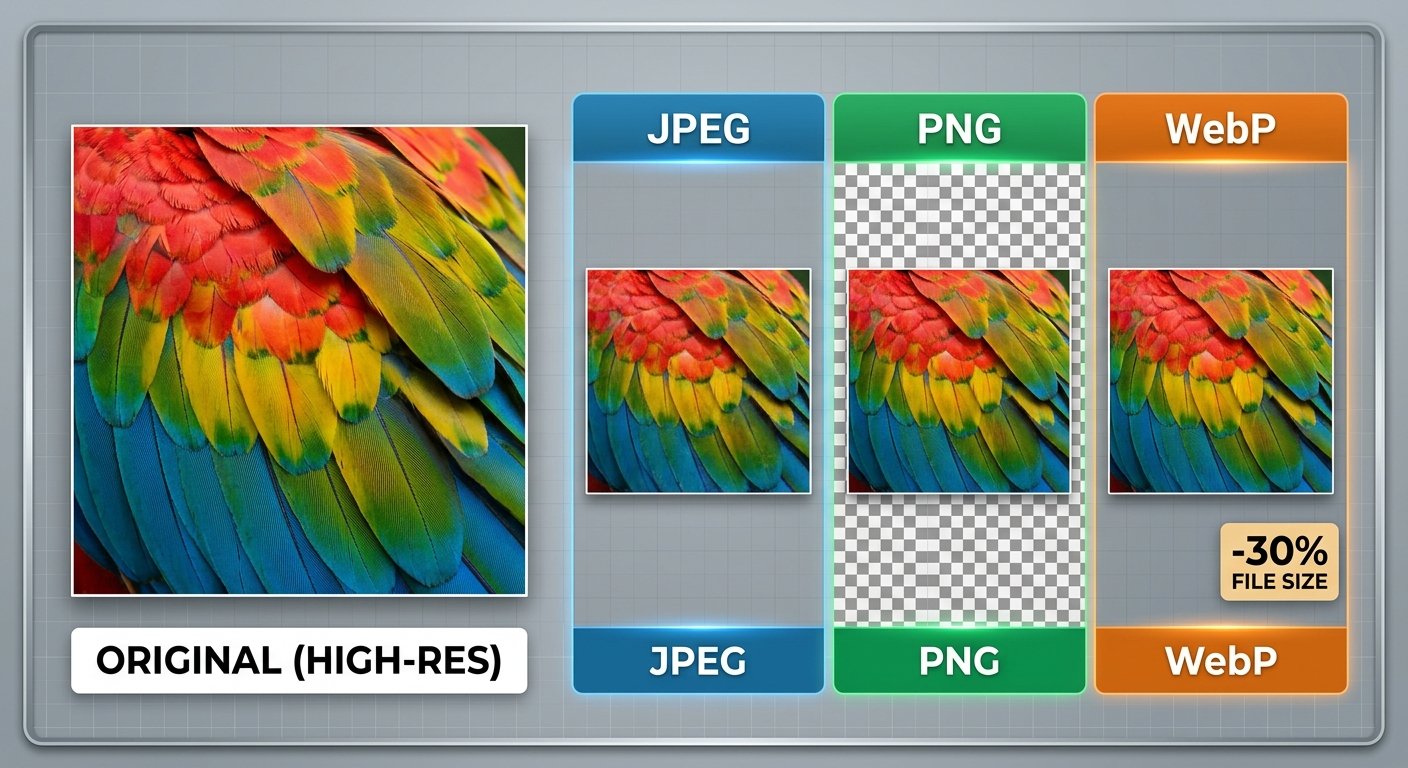
It provides the best of both worlds: it has the transparency of a PNG and the small file size of a JPEG, but with even better compression (usually 25-35% smaller than JPEG).
Best Use Cases:
Website Hero Images: For fast-loading landing pages.
Blog Post Images: To keep your site zippy and SEO-friendly.
Animation: WebP can even replace GIFs with much smaller file sizes.
The Downside:
While most modern browsers support it, some very old legacy systems might struggle. However, in 2026, it is widely considered the industry standard.
Pro Tip: If you're a content creator, you don't need expensive software to manage these formats. Check out our list of
to find the best converters. 10 free online tools every content creator should use in 2026
Quick Comparison: Do’s vs. Don’ts
| Feature | JPEG | PNG | WebP |
| Transparency | No | Yes | Yes |
| File Size | Small | Large | Smallest |
| Quality | Lossy | Lossless | Both |
| Best For | Photos | Logos/Graphics | Everything Web |
How to Choose: A Step-by-Step Guide
Here’s the trick to picking the right one every time:
Does it need a transparent background?
Yes: Use PNG for logos or WebP for web graphics.
Is it a complex photograph with lots of colors?
Yes: Use JPEG for general use or WebP for website optimization.
Is it a simple graphic, icon, or text-heavy image?
Yes: Use PNG.
Are you worried about site speed/SEO?
Yes: Always convert to WebP before uploading to your CMS.
Common Pitfalls to Avoid
Don't make the mistake of using a PNG for a full-screen background photo; you'll end up with a 5MB page that no one wants to wait for. Conversely, don't use JPEG for a logo, or you'll have a weird white box around it that ruins your design.
If you are working with transparent images, be sure to avoid
Conclusion
Choosing the right format isn't just about technical specs—it's about balance. You want the highest quality possible at the lowest possible file size.
Use JPEG for photos.
Use PNG for transparency and sharp icons.
Use WebP for everything else on the web.
Ready to level up your visual game? Whether you need to clean up a product shot or find the perfect tool for your next project, visit
FAQs
1. Does WebP work on all browsers?
Yes, as of 2026, all major browsers (Chrome, Safari, Firefox, Edge) fully support WebP.
2. Can I convert a JPEG to a PNG to make it higher quality?
No. Converting a "lossy" format to "lossless" won't bring back the lost data; it will just make the file size larger without improving the look.
3. Why does my PNG look blurry on my website?
This usually happens due to improper scaling. Ensure you are
4. Should I still use GIFs?
For simple memes, sure! But for website animations, WebP or MP4 files are much more efficient and offer better color depth.
5. How do I remove a background and save it as a PNG?
You can use various AI tools to handle the heavy lifting. Check out our
Related Guides & Articles
- GTA 6 Launch Guide Reveals the Settings PS5 and Xbox Players Should Change First
- 10 Free Online Puzzle Games You Can Play Directly in Your Browser
- Best Free Brain Games to Play Online Without Downloading
- Photo Editing Quiz: Test Your Knowledge of Image Editing Basics
- Why Some Small Brands Are Getting More Attention Than Big Companies
- AI Agents Are Getting Smarter: What Can They Actually Do in 2026?
