How to Use AI Image Restoration to Clean Up Old Family Photos
Introduction: The Fragility of Our Visual History
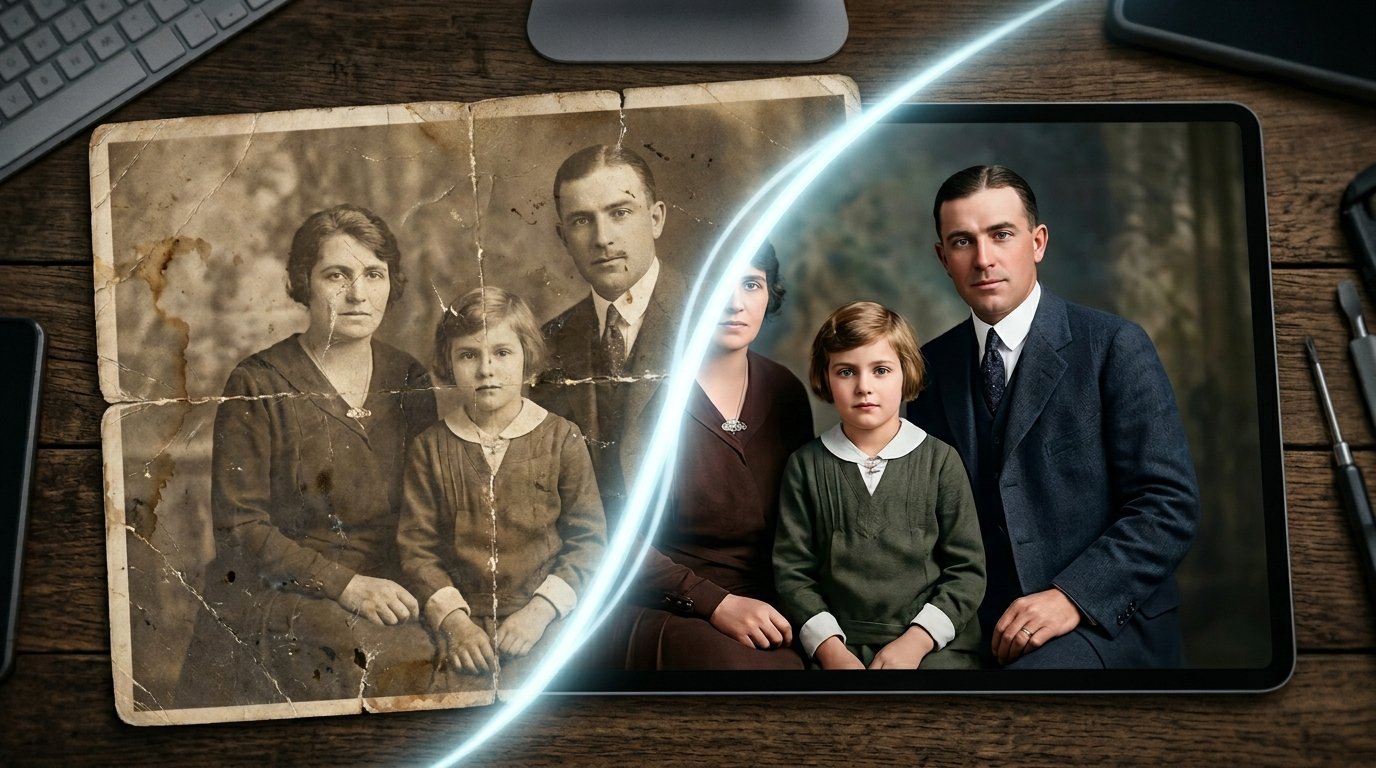
Tucked away in a dusty shoebox or a heavy velvet album, your family history is slowly fading. Old photographs hold irreplaceable memories. They capture the smiles of ancestors we never met and the childhood moments of those we love. But time is cruel to physical paper. Humidity causes mold spots. Sunlight bleaches vibrant colors into dull shades of gray. Frequent handling leaves tears, creases, and stubborn fingerprint smudges.
For decades, fixing these damaged relics required serious cash or hundreds of hours mastering complex desktop editing software. Most people simply couldn't do it. But things changed.
Today, smart technology alters the playing field completely. Advanced image restoration powered by artificial intelligence can salvage seemingly ruined photographs in just a few clicks. AI algorithms analyze degradation, patch up missing visual data, and bring vibrant life back to black-and-white memories. This guide will walk you through exactly how AI image restoration works, how to prep your physical photos for digital cleanup, and the best practices to achieve professional-grade results.
Why Vintage Photos Degrade (And How AI Fixes It)
Photographic paper is organic material. It reacts to its environment. Silver halides break down, gelatin emulsions crack, and chemical dyes separate over decades of storage.
Traditional digital restoration relies heavily on clone stamping and manual healing brushes. An editor must hand-paint over every single scratch. It takes forever.
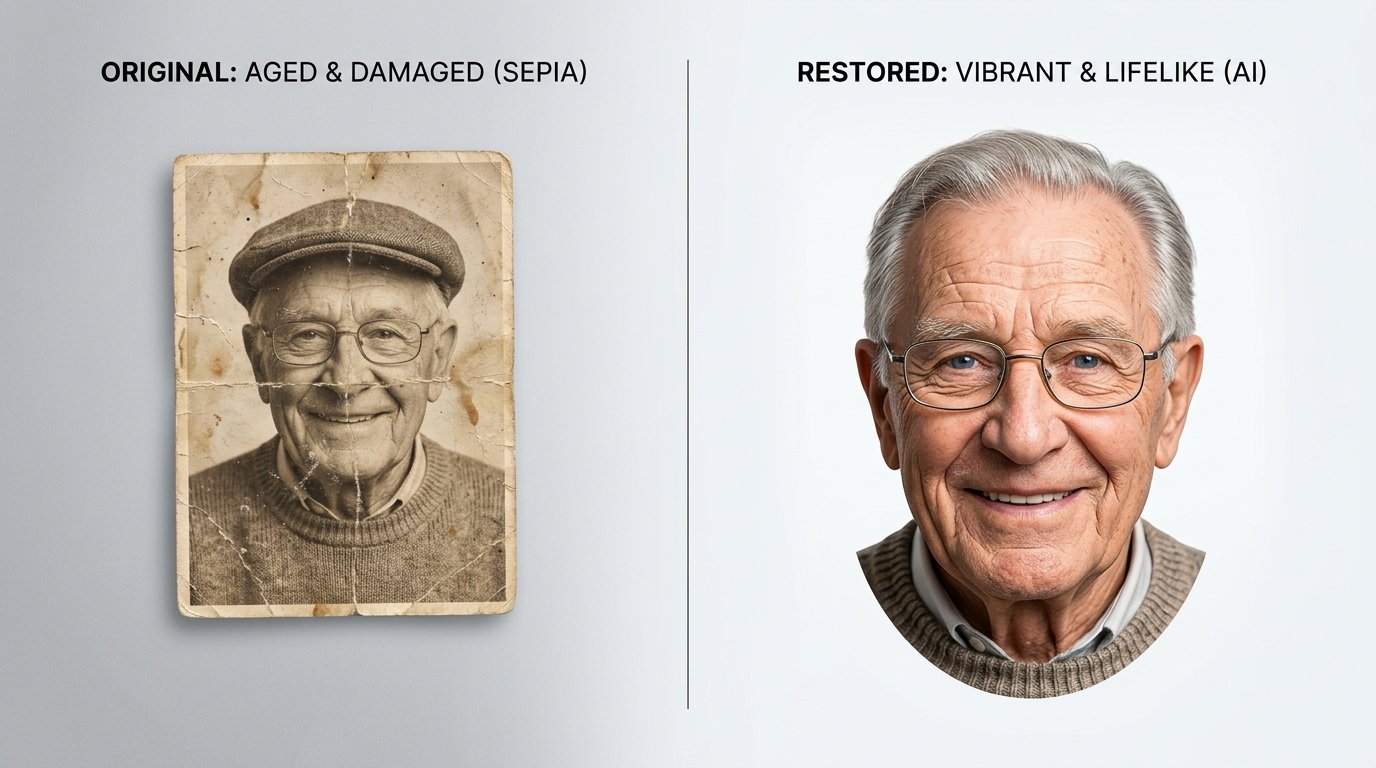
AI approaches the problem differently. Neural networks are trained on millions of clean images alongside their damaged counterparts. The algorithm learns what a healthy photo looks like. When you feed it a damaged scan, it doesn't just smudge the scratches away. It actually understands the context of the picture.
If a crease cuts right through your grandfather's jacket, the AI recognizes the textile pattern. It automatically reconstructs the fabric weave. If a tear removes half of a background tree, the system calculates the likely shape of the leaves and fills the blank space seamlessly. It acts like an automated digital archaeologist, rebuilding lost history pixel by pixel.
Step 1: Digitizing Your Old Photos the Right Way
You cannot use image restoration software without a digital file. The cleanup quality depends heavily on your initial scan. Garbage in, garbage out. Follow these steps to get a pristine digital baseline.
Clean the Physical Photo
Dust particles look like digital noise to an AI. Use a soft, dry microfiber cloth to gently wipe the surface of your old photo. Never use water or liquid cleaners, as they can liquefy the old emulsion and permanently destroy the image.
Choose the Right Scanner
A flatbed scanner is always best. Set the resolution to at least 300 DPI for standard viewing, or 600 DPI if you plan to enlarge the photo later. Scan in 24-bit color, even if the photograph is strictly black and white. Color scanning captures subtle tonal shifts that help AI separate stains from the original silver image.
The Smartphone Alternative
Don't have a scanner? Use your phone, but do it carefully. Place the photo flat on a table near a window for soft, indirect natural light. Avoid direct sunlight because it creates harsh glare. Hold your phone completely parallel to the photo to prevent perspective distortion. You can use a dedicated mobile app like
Step 2: Preparing and Optimizing Your Scan File
Before running deep restoration algorithms, your digital file might need some structural adjustments. Raw scans often come out skewed, or they contain unwanted borders from the scanner bed.
First, crop out the unnecessary edges. If the photo size is weirdly warped or needs precise pixel alignment for modern displays, pass it through a
Sometimes vintage photos suffer from extreme background clutter or heavy water damage around the edges that distracts from the main subject. In these cases, using an
[ Physical Photo ] ➔ [ 600 DPI Scan / Doc Scanner ] ➔ [ Crop & Resize ] ➔ [ AI Restoration Engine ] ➔ [ Color & Output ]
Step 3: Running the AI Image Restoration Process
Once your file is prepped, the core AI restoration begins. Modern AI tools generally handle three major tasks automatically:
Scratch and Dust Removal: The algorithm scans for sharp, high-contrast lines or dots that don't match the surrounding pixel patterns. It dissolves cracks, fold marks, and pinholes instantly.
Face Enhancement and Upscaling: Old cameras often produced blurry or soft images, especially in low light. AI face restoration detects eyes, noses, and mouths, sharpening the details so you can see expressions clearly.
Colorization: If your photo is monochrome or faded sepia, generative AI predicts the original hues. It identifies skin tones, clothing textures, sky, and foliage, applying realistic color layers that look natural rather than painted on.
If you have a massive stack of family photos, doing this one by one is exhausting. Look for tools that offer
Common Mistakes to Avoid in Digital Photo Repair
While AI is incredibly powerful, it isn't magic. Striking the right balance keeps your photos looking historical rather than plastic.
Over-smoothing the Details
AI can sometimes go too far. If you turn the restoration strength up to maximum, skin textures can look like wax dolls. Always keep a bit of the original grain. Grain gives vintage photos their unique character and depth.
Ignoring File Formats
Saving your restored work as a heavily compressed file ruins your hard work. Avoid aggressive compression early in the process. Convert your raw scans using a reliable
Destroying the Originals
Never overwrite your original scan. Always save your restored image as a new file. You might want to re-restore the photo in a few years when AI technology advances even further. Keep that original digital negative safe.
Best Practices for Archiving Your Restored Memories
Restoring the image is only half the battle. Now you need to make sure your digital copies last for the next century.
Archival Workflow:
1. Save master copy as uncompressed PNG or TIFF.
2. Create a compressed JPEG/WebP version for social media sharing.
3. Upload copies to two different cloud providers.
4. Keep one copy on a physical external drive stored off-site.
Organize your files with clear naming conventions. Use dates and names in the file titles, such as 1945_Grandma_Smith_Wedding_Restored.png.
If you plan to email these memories to distant relatives, huge file sizes will bounce back from their inboxes. Use an
FAQ: Common Questions About AI Image Restoration
Can AI repair a photo that is torn completely in half?
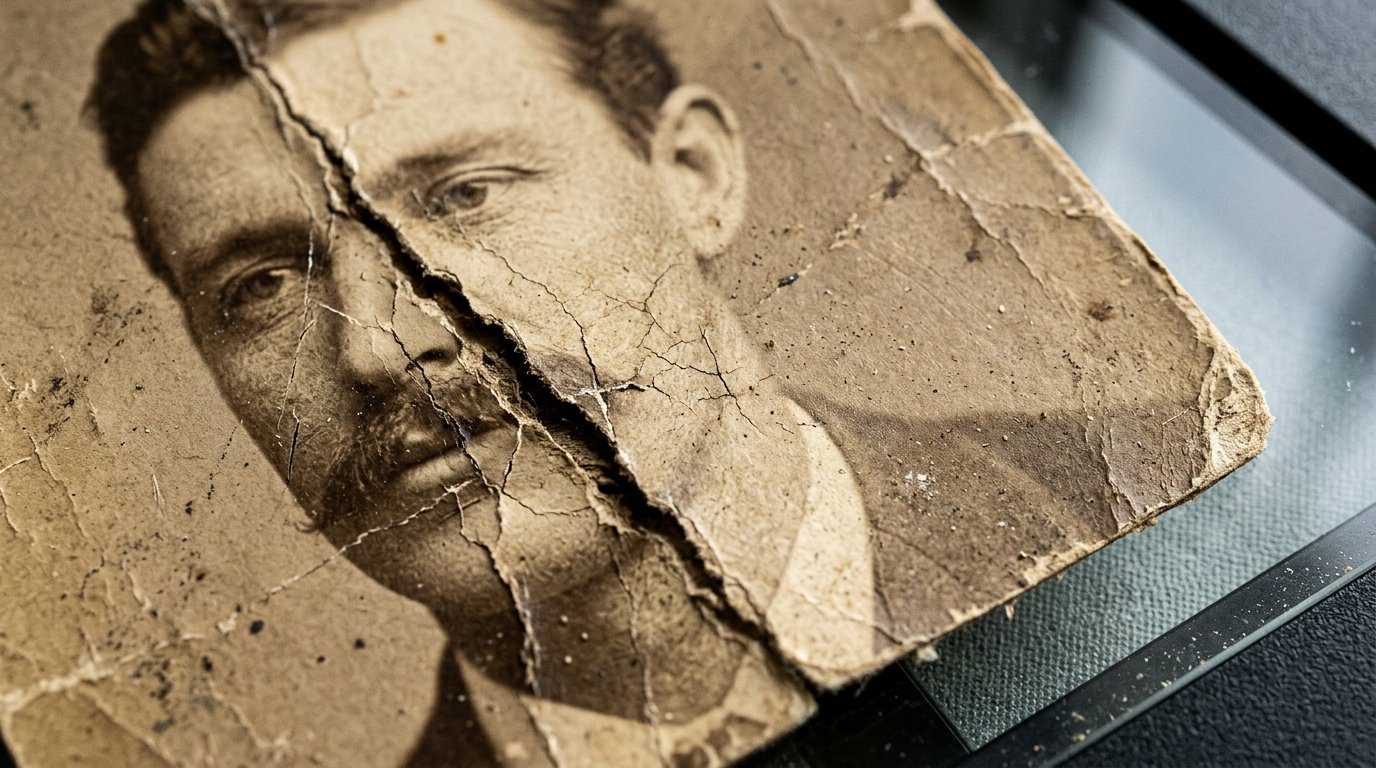
Yes. If you scan both pieces together or align them in an editing layout, AI can analyze the fracture line. It fills in the missing paper gaps and blends the textures across the tear seamlessly.
Does AI colorization look realistic?
It has become incredibly accurate. The AI doesn't guess randomly. It determines colors based on historical data patterns, lighting gradients, and material textures found in millions of reference photos.
Should I fix lighting issues before or after using AI restoration?
Fix them during the preparation stage. Adjusting basic contrast and exposure beforehand helps the AI algorithm read hidden details in dark shadows or bright highlights more effectively. You can use a
Is it safe to remove the background of an old photo?
Purists might prefer keeping the original background. But if the background is severely damaged by water stains, mold, or severe fading, using an
Conclusion: Bring Your History Into the Digital Age
Old family photos connect us to our roots. They remind us of where we came from. Leaving them to rot in old boxes means losing those connections forever. AI image restoration bridges the gap between past nostalgia and modern clarity, allowing anyone to rescue their heritage without technical expertise.
Ready to start working on your family archive? Head over to
Related Guides & Articles
- GTA 6 Launch Guide Reveals the Settings PS5 and Xbox Players Should Change First
- 10 Free Online Puzzle Games You Can Play Directly in Your Browser
- Best Free Brain Games to Play Online Without Downloading
- Photo Editing Quiz: Test Your Knowledge of Image Editing Basics
- Why Some Small Brands Are Getting More Attention Than Big Companies
- AI Agents Are Getting Smarter: What Can They Actually Do in 2026?
