How to Merge Multiple Images into One PDF: The Ultimate Guide

Why Combine Your Images?
We have all been there. You have a folder filled with scanned receipts, sketches, or product snapshots that you need to send to a client or colleague. Sending twenty separate image attachments is messy, unprofessional, and frustrating for the recipient. Learning how to merge multiple images into one PDF is a game-changer for your daily workflow.
By consolidating your files, you create a singular, portable, and organized document. It keeps your data protected, ensures pages stay in order, and allows for easier annotation. Whether you are prepping professional presentations or simply cleaning up your digital workspace, this skill saves hours of administrative headache.
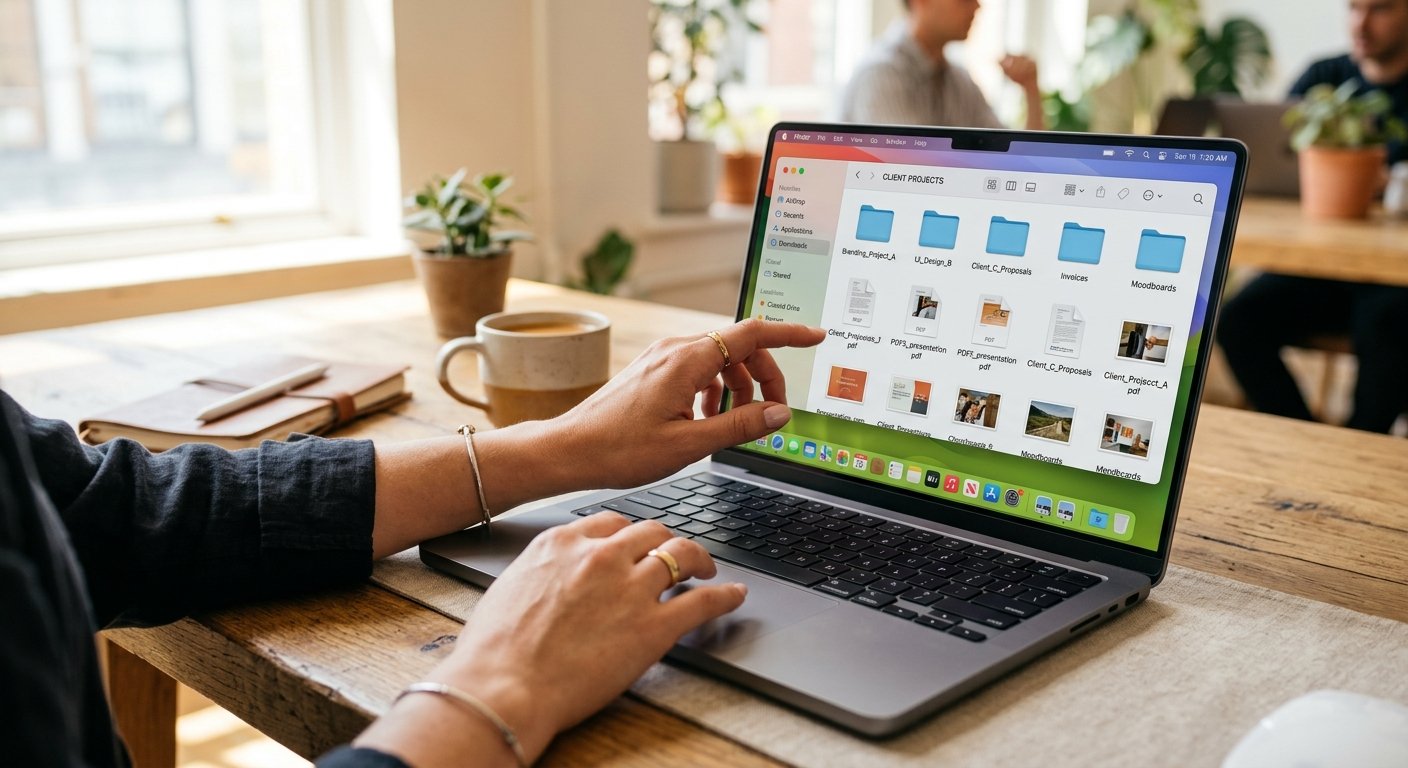
Before you jump into the merger, you might want to ensure your images look their best. If your files have distracting elements, our background remover can clean up your visuals to ensure a professional presentation inside your PDF. Keeping images uniform in size also makes the final document look cohesive. Feel free to use our image resizer if you need to match dimensions before the final compilation.
Preparation Steps for High-Quality PDFs
A great PDF starts with great source files. If you are uploading photos from your smartphone or an old scanner, they might be too large for easy emailing. A massive file size leads to slow loading times and rejected email attachments.
- Organize your images in a single folder before starting the merge process.
- Rename your files in the order you want them to appear in the PDF (e.g., 01_cover, 02_details, 03_conclusion).
- Check your image formats. Standard formats like JPG or PNG usually work best. If you have unique file types, use a format converter to unify them first.
- Optimize the file weight. Using an auto-compress tool ensures that your PDF doesn't exceed common file size limits.
How to Merge Multiple Images into One PDF Efficiently
Gone are the days of printing files to PDF one by one. Modern web-based utilities have simplified this significantly. By using a specialized document processing tool, you maintain the high quality of your images while ensuring the final PDF is structured logically.

Start by identifying the specific documentation needs of your project. If you are working on business paperwork, our smart doc assistant can help organize and prepare your images specifically for official document standards. Following these simple steps will ensure a high-quality outcome every single time you hit save.
Common Pitfalls to Avoid
When merging images, many people forget about image orientation. A PDF looks jarring when half the pages are portrait and the other half are landscape. Always preview your layout if the tool allows it.
Another common mistake involves neglecting image clarity. If your images are low-resolution, they will look pixelated when stretched across a full A4 page. Ensure your source imagery is crisp. If you are dealing with product images, consider using a product studio environment to prep your shots, or use a recolor cloth tool if you need to make quick visual adjustments before the PDF build.
Best Practices for Professional Results
If you are creating a document for clients, consistency is the name of the game. Try to keep the margins consistent and the resolution balanced across all pages. If you have used an AI background remover to standardize your product images, your PDF will look significantly more polished and "on-brand" than one with mixed, chaotic backgrounds.
Finally, always perform a quick check of the file size before hitting send. If it is still too large, revisit your optimization settings. Smaller, compressed PDFs are always better for fast digital delivery.
Frequently Asked Questions
Can I merge PNG and JPG files into one PDF?
Yes, most modern tools handle mixed formats effortlessly. However, converting them all to a single format first can lead to more predictable results.
Will merging reduce the quality of my images?
Quality reduction usually depends on your compression settings. Use high-quality settings during the export process to retain clarity.
Is it better to merge images online or offline?
Online tools are much faster and save you from installing heavy, bloated software on your computer. MakeMyVisuals provides a streamlined way to handle this without installation.
Get Started with MakeMyVisuals
Ready to turn your scattered images into a professional, cohesive document? Stop juggling files and start building better PDFs today. Whether you need to prep your images, remove backgrounds, or handle complex document tasks, we have the tools you need to succeed. Explore the full suite of MakeMyVisuals tools now and streamline your visual workflow.
Related Guides & Articles
- 10 Free Online Puzzle Games You Can Play Directly in Your Browser
- Best Free Brain Games to Play Online Without Downloading
- Photo Editing Quiz: Test Your Knowledge of Image Editing Basics
- Why Some Small Brands Are Getting More Attention Than Big Companies
- AI Agents Are Getting Smarter: What Can They Actually Do in 2026?
- How to Make an Image Sharper Without Creating Unnatural Edges
