How to Fix AI Hands and Weird Glitches in Your Generated Images

Introduction
We’ve all been there. You spend twenty minutes crafting the perfect prompt for a cinematic masterpiece. The lighting is gorgeous, the composition is spot-on, but then you look closer... and your subject has seven fingers on one hand and a floating eyeball.
As powerful as AI generators like Midjourney and DALL-E have become, they still struggle with the "anatomy of logic." These glitches happen because AI doesn't understand "bones"—it only understands patterns of pixels. But don't delete that image just yet!
Whether you are preparing
Why Does AI Struggle with Hands and Details?
In simple terms, AI models are trained on 2D images. While they know what a hand looks like, they don't understand that a hand is a 3D object with five fingers and specific joints. When the AI gets "confused" by shadows or overlapping limbs, it tries to blend them together, resulting in the famous "AI spaghetti."
Common Glitches to Watch For:
Extra Appendages: Too many fingers, toes, or even third arms.
Melting Backgrounds: Text or architecture that looks like it’s dripping.
The "Uncanny Valley" Eyes: Irises that aren't circular or eyes looking in different directions.
Inconsistent Textures: Hair that turns into skin or clothes that blend into the body.
Pro Strategies to Fix AI Hands and Anatomy
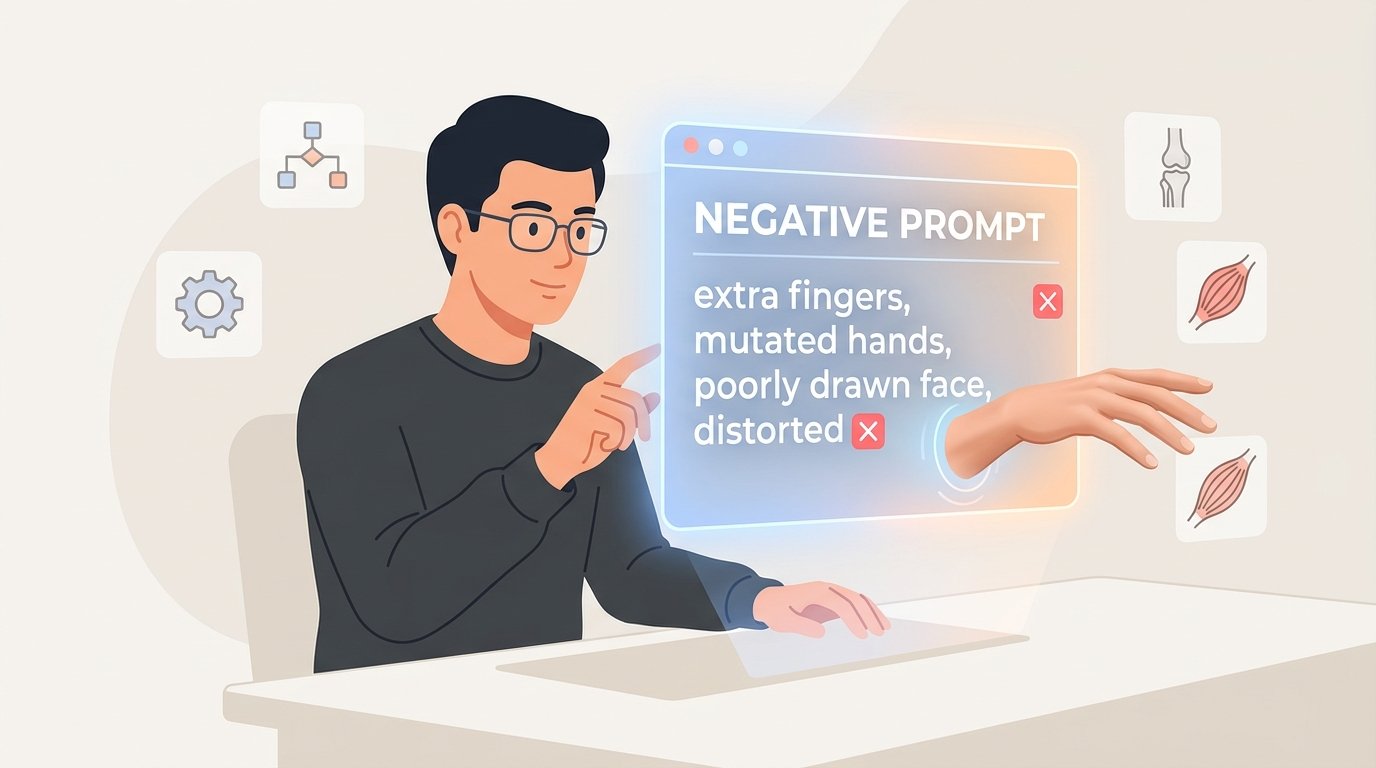
1. Master the "Negative Prompt"
The easiest way to fix a problem is to prevent it. Most AI tools allow for "negative prompting." By telling the AI what not to do, you give it a clearer boundary.
Try adding these terms to your negative prompt:
extra fingers, mutated hands, poorly drawn face, deformed, long neck, fused fingers, six fingers, distorted.
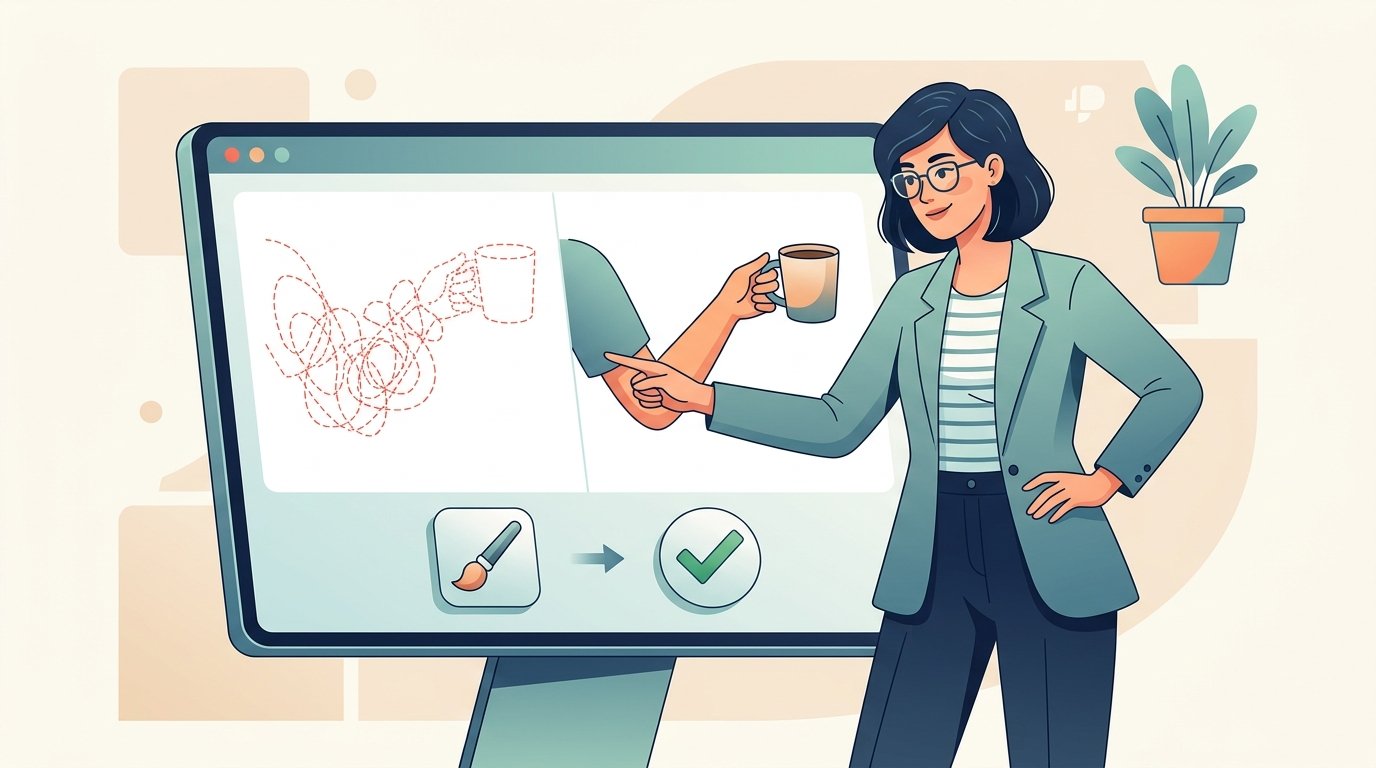
2. Use In-Painting (The Magic Eraser)
Most advanced AI platforms now offer an "In-painting" or "Vary Region" tool. This allows you to highlight just the glitched hand and ask the AI to re-generate only that specific area.
Pro Tip: When in-painting, keep your new prompt simple. Instead of "five-fingered realistic hand," just type "hand resting on table." Let the AI focus on the anatomy.
3. Image-to-Image Refinement
Sometimes, the base image is great, but the details are messy. You can use your glitched image as a reference for a new generation. By lowering the "Image Weight" or "Denoising Strength," the AI keeps the composition but attempts to redraw the messy parts with better logic. You can even
Using External Tools to Polish Your AI Art
Often, the best way to fix AI is to use a human touch—or at least a different set of specialized tools.
Refine the Edges
AI often leaves "halos" or fuzzy artifacts around a subject’s hair or limbs. To make the subject pop and look intentional, you can use an
Fix the Background
If the AI messed up the background while trying to get the hands right, don't sweat it. You can simply use a
Step-by-Step Guide: The "Perfect Fix" Workflow
Here is the exact process professional editors use to clean up AI-generated content for commercial use:
Identify the Core Issue: Is it just the hand, or is the whole anatomy skewed?
The In-Paint Pass: Use your AI tool’s regional editor to try and "re-roll" the fingers 3–4 times until one looks natural.
Manual Cleanup: If the AI keeps failing, take the image into a photo editor. Use a "Clone Stamp" or "Healing Brush" to remove the extra finger manually.
Enhance the Lighting: AI often forgets how shadows work on complex shapes. Adding a
realistic product shadow Final Polish: Once the anatomy is fixed, run the image through a
Size Optimizer
Expert Insights: Making AI Look Authentic
"The secret to great AI art isn't the prompt; it's the post-processing. A 5-minute cleanup can make a $0.01 generation look like a $500 photoshoot."
To truly bridge the gap, check out our guide on
Quick Resolution Trick:
AI glitches are often more visible in low resolution. If you have a small glitch, try upscaling the image first. Sometimes the added detail of an upscale helps the AI "realize" it made a mistake and it naturally smooths out the edges.
Conclusion
AI is a tool, not a replacement for an editor's eye. While "AI hands" have become a bit of a meme, they don't have to be the end of your creative project. By using a combination of negative prompts, in-painting, and the right post-production tools, you can create flawless imagery that rivals traditional photography.
Ready to take your visuals to the next level? You can explore more design tips and advanced editing tools on
FAQs
1. Why does AI always give people six fingers? AI doesn't count. It sees thousands of photos of hands where fingers are in different positions. It tries to replicate the "look" of fingers without understanding the underlying skeletal structure of five digits.
2. Can I fix AI glitches for free?
Yes! You can use manual editing techniques or free AI tools that offer "In-painting" features. Additionally, using tools like a
3. What is the best negative prompt for hands? The most effective terms are "extra limbs, fused fingers, malformed hands, deformed, mutated, and missing fingers."
4. Does upscaling help fix glitches? Sometimes. Upscaling adds pixels and detail. While it won't remove a sixth finger, it can fix "blurry" or "melted" textures that make an image look low-quality.
5. Should I use AI for professional headshots if it glitches?
Yes, but you must review them carefully. Ensure the eyes and hands are perfect before using them on LinkedIn or your portfolio. Check out our guide on
Related Guides & Articles
- GTA 6 Launch Guide Reveals the Settings PS5 and Xbox Players Should Change First
- 10 Free Online Puzzle Games You Can Play Directly in Your Browser
- Best Free Brain Games to Play Online Without Downloading
- Photo Editing Quiz: Test Your Knowledge of Image Editing Basics
- Why Some Small Brands Are Getting More Attention Than Big Companies
- AI Agents Are Getting Smarter: What Can They Actually Do in 2026?
