How to Create a Digital Signature Online for Free
Why You Need a Professional Digital Signature
In our lightning-fast digital economy, the days of hunting for a printer just to scrawl your name on a contract are over. Whether you’re juggling freelance agreements, leasing a new office, or pushing through internal memos, speed isn’t just a perk—it’s a requirement. Building a high-quality digital signature lets you close deals from anywhere, cutting out the archaic, time-sucking cycle of printing, scanning, and emailing paperwork.
Using a specialized signature maker doesn't just shave minutes off your workday; it polishes your reputation. Consistency is the heartbeat of professionalism. When your signature looks uniform across every digital touchpoint, it signals to clients and partners that you’re organized, reliable, and ready to get down to business.
The Advantage of Going Digital
Physical paper is nothing but friction. It clogs up your workflows and creates unnecessary administrative drag. By moving your signature process to the digital realm, you effectively kill the bottlenecks that slow down document circulation. You gain the autonomy to review, sign, and fire off critical files in mere seconds rather than waiting on hours of logistics.
Modern digital signatures carry real weight. In the vast majority of jurisdictions, they are perfectly legally binding when handled correctly. This shift in methodology lets you pour your mental energy back into the substance of your work rather than wasting it on the tedium of document processing. It’s a low-effort upgrade that pays out big dividends in your daily productivity.
Security and Authenticity
When you trust an online tool with your digital mark, you need to know your identity is bulletproof. Quality platforms treat your data as a priority, ensuring your unique graphic is stored securely and remains accessible only to you. Authenticity relies on visual clarity; having a clean, high-resolution file ensures your name looks crisp on everything from a tiny smartphone screen to a massive desktop monitor.
If your documents need a little extra TLC before you drop your signature on the line, you might find our smart doc assistant to be a game-changer. It ensures your layouts are airtight and perfectly formatted before you finalize that deal.
How to Create Your Signature Step-by-Step
Creating a professional digital signature is far easier than most people assume. You don’t need a fancy design degree or expensive software suites to get a result that looks exactly like you’ve just grabbed a fountain pen and signed a pristine sheet of heavy bond paper.
Step 1: Preparing Your Surface
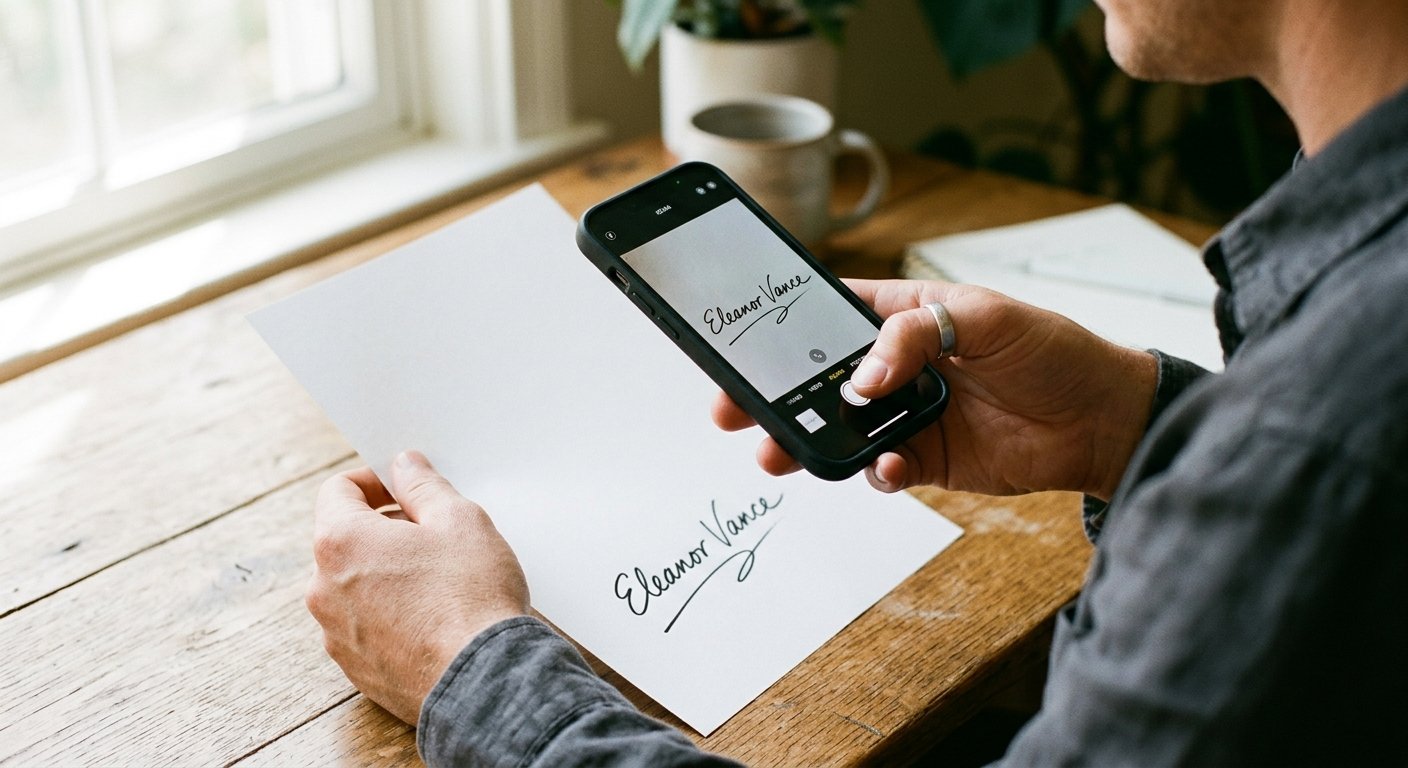
Grab a clean, white, unlined sheet of paper. Use a dark pen—ideally black—to ensure maximum contrast, which makes the background remover process infinitely smoother. Aim for the center of the page and give yourself plenty of breathing room around the edges so the software can easily isolate your stroke.
Step 2: Digitizing the Input
Pull out your smartphone and snap a clear, well-lit photo of your signature. Watch for uneven lighting; harsh shadows are the enemy of a clean cutout. If your camera spits out a massive file, use an image resizer to bring it down to a manageable size without losing any of that necessary detail.
Step 3: Refining and Cropping
Upload your shot to our platform. If the background looks dingy or uneven, tap into the free background remover to pull your signature onto a perfectly transparent canvas. This ensures your mark blends seamlessly into any PDF, leaving behind that amateurish "white box" outline that plagues so many bad digital signatures.
Optimizing Your Signature for Documents
Once you’ve got that clean, transparent PNG, you need to ensure it's built for professional heavy lifting. A file that’s too bulky will bloat your PDFs, but one that’s too small will turn into a pixelated mess the moment it hits a larger screen.
Choosing the Right Format
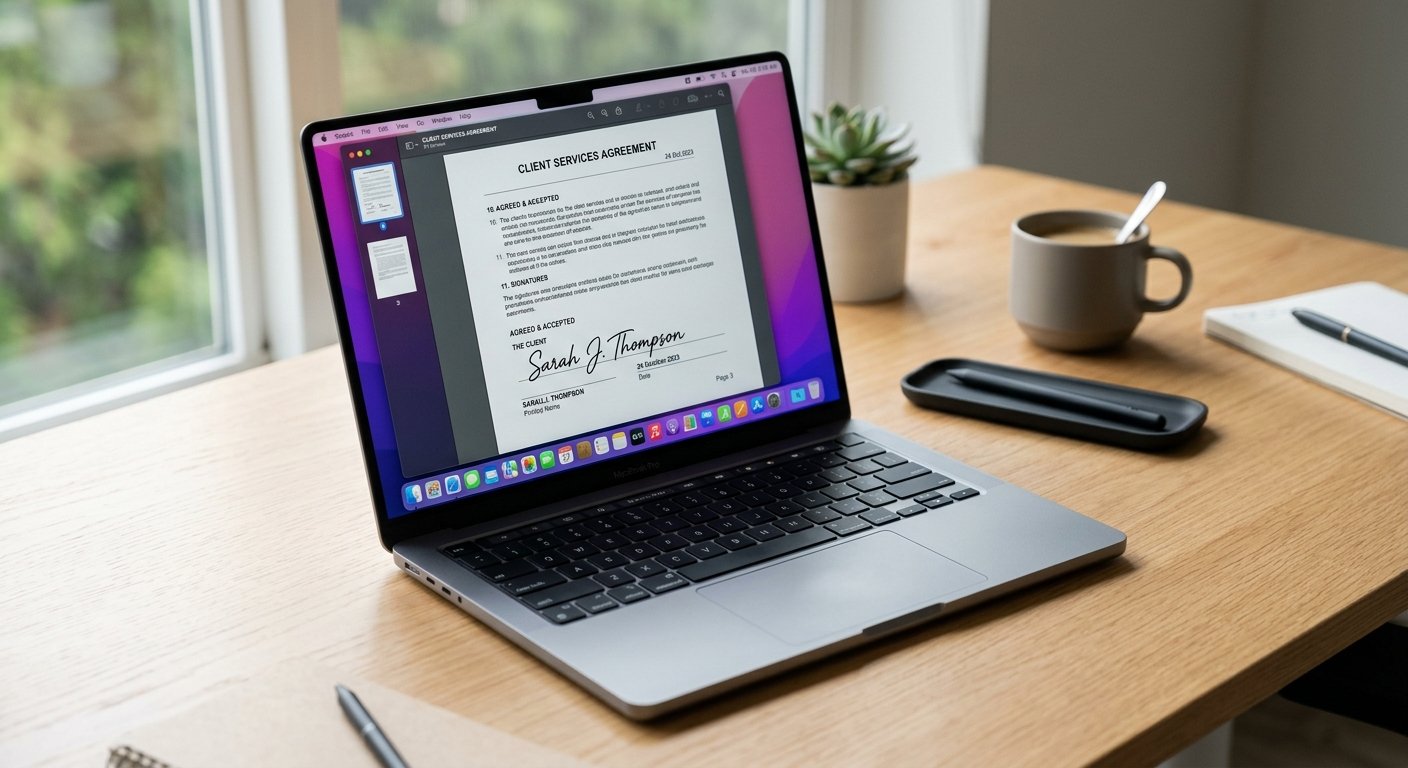
Always stick with a transparent PNG. Unlike JPEGs, which force an opaque background onto your design, PNGs handle transparency like a pro. If you find yourself struggling with a stubborn file type, our format converter can handle the heavy lifting for you in a heartbeat.
Maintaining File Quality
High-resolution output is non-negotiable. You want your signature to stay razor-sharp even if a client zooms in to inspect the fine print. If your file got chewed up during the transfer process, an auto-compress tool is your best friend for balancing a small file weight against absolute visual integrity.
Common Mistakes to Avoid
Most people struggle with signatures that look "ghostly" or suffer from jagged, ugly edges. Usually, this happens because the lighting was poor during the initial capture or the contrast settings were too aggressive during the cleanup process.
Poor Lighting and Shadows
If your photo is full of shadows, the software might accidentally mistake them for part of your handwriting. Stick to natural, indirect sunlight for the crispest, cleanest results. If you’re stuck with a problematic image, a quick pass through an AI background remover can often fix these tricky edge cases automatically.
Resolution Issues
Never try to salvage a blurry photo. If your camera missed the focus, the result will always look amateurish. Take five or six shots and pick the one that is clearly the sharpest. If you're worried about the file size for your email or document portal, use an image resizer rather than degrading the actual visual quality of the signature itself.
Best Practices for Consistent Branding
Your signature is a core piece of your professional brand identity. Whether you're signing invoices or high-value contracts, consistency builds a sense of quiet authority. Keep a master version of your file in a cloud-synced folder so it’s always ready to go, no matter which device you’re on.
Updating Your Signature
Your signature might naturally evolve as the years go by. Don’t be afraid to refresh it every few years to keep it feeling current. If you do update your look, make sure you purge the old versions from your document templates so you don’t accidentally fire off a file with an outdated look.
Strategic Placement
Where you plant your signature is just as important as how it looks. It should align perfectly with the text or the signature line on the document. If you’re dealing with a complex document layout, use our smart doc assistant to organize your layers properly, ensuring your signature sits exactly where it belongs without obscuring any vital text.
Enhancing Documents Beyond Signatures
A digital signature is just one piece of the document management puzzle. If you’re running an e-commerce storefront or managing a high-volume freelance business, you’ve got other visual needs too. Our product studio helps you keep your entire business portfolio visually cohesive.
The Role of Visual Processing
True efficiency comes from having your toolkit under one roof. From portrait tools to keep your team’s headshots looking sharp to basic image editing, a central hub stops you from jumping between dozens of tabs. When your workflow is streamlined, you can get back to the actual work that generates your revenue.
Frequently Asked Questions (FAQ)
Is my digital signature legally binding?
In most regions, including the US and UK, electronic signatures are legally binding for the overwhelming majority of personal and business transactions. Just make sure to double-check local regulations if you’re dealing with high-stakes items like real estate deeds or wills.
Can I use my signature on any document type?
Absolutely. Once you’ve secured that transparent PNG from our signature maker, you can drop it into PDFs, Word documents, or image files with total ease. Just verify that your specific editor allows for image overlays.
How do I make the background transparent?
Upload your photo to our platform and select the background remover. Our AI handles the heavy lifting, detecting the ink and stripping away the paper background to leave you with a perfectly transparent, ready-to-use PNG.
What should I do if my signature looks pixelated?
Pixelation almost always comes from a low-resolution source image. Try to capture your signature using a high-quality camera in bright, even light. If you’re still hitting a snag, use our image resizer to make sure the file is scaled properly for your document dimensions.
Is MakeMyVisuals free to use for signatures?
Yes, creating and refining your digital signatures is free on our platform. We offer a full suite of tools designed to help you manage your images and visual assets without forcing you into expensive, complex subscriptions.
Ready to level up your professional look? Head over to MakeMyVisuals today and start creating clean, crisp digital signatures in seconds. Explore the rest of our AI-powered suite and see how much easier your document workflow can be.
Related Guides & Articles
- Realme 16 Pro Harry Potter Edition Debuts to High Fan Expectations
- Image Dimensions for Every Major Social Media Platform (2026)
- How to Remove Background from Jewelry Photos Without Losing Details
- What Is the Best Image Compression Workflow for a Website?
- Why Are iPhone Photos Saved as HEIC Instead of JPG?
- How to Compress a PDF to 300KB Without Making It Unreadable