How to Convert Handwritten Notes into PDF: The Complete Guide

Why Digitizing Your Handwriting Matters
You have a desk full of paper. It is cluttered. It is hard to search. And frankly, it is not secure. Converting handwritten notes into a PDF format changes the game entirely. Once your notes are digital, you can store them in the cloud, tag them for easy searching, and share them instantly with colleagues.
Digital files do not get lost in a coffee spill or buried under a pile of invoices. They are always accessible from your phone or laptop. If you are struggling with messy paper trails, it is time to move your workflow into the modern age.

If you are looking for professional document handling, our smart doc assistant can help you refine your scanned files for better legibility and organization.
The Best Way to Capture Your Notes
Before you hit the conversion button, you need a high-quality capture. Most people just snap a quick photo. But, shadows and poor lighting make the text hard to read later. Find a spot with indirect natural light to avoid harsh glare on the paper surface.
Keep your camera parallel to the paper. If you are struggling with background clutter around your desk, use an AI background remover to clean up the edges of your scan. This makes the text pop and ensures the file looks like a professional document rather than a random snapshot.
Optimizing Your File Size
Once you have captured your pages, the file sizes can be massive. High-resolution images from modern smartphones often result in bloated PDFs that are hard to email or upload. Always remember to use an auto compress tool before finalizing your document.
Proper compression ensures that your document remains crisp while shedding unnecessary data. This is especially useful if you are sending your notes to clients or saving them to a server with limited storage space.
Step-by-Step: Converting to PDF
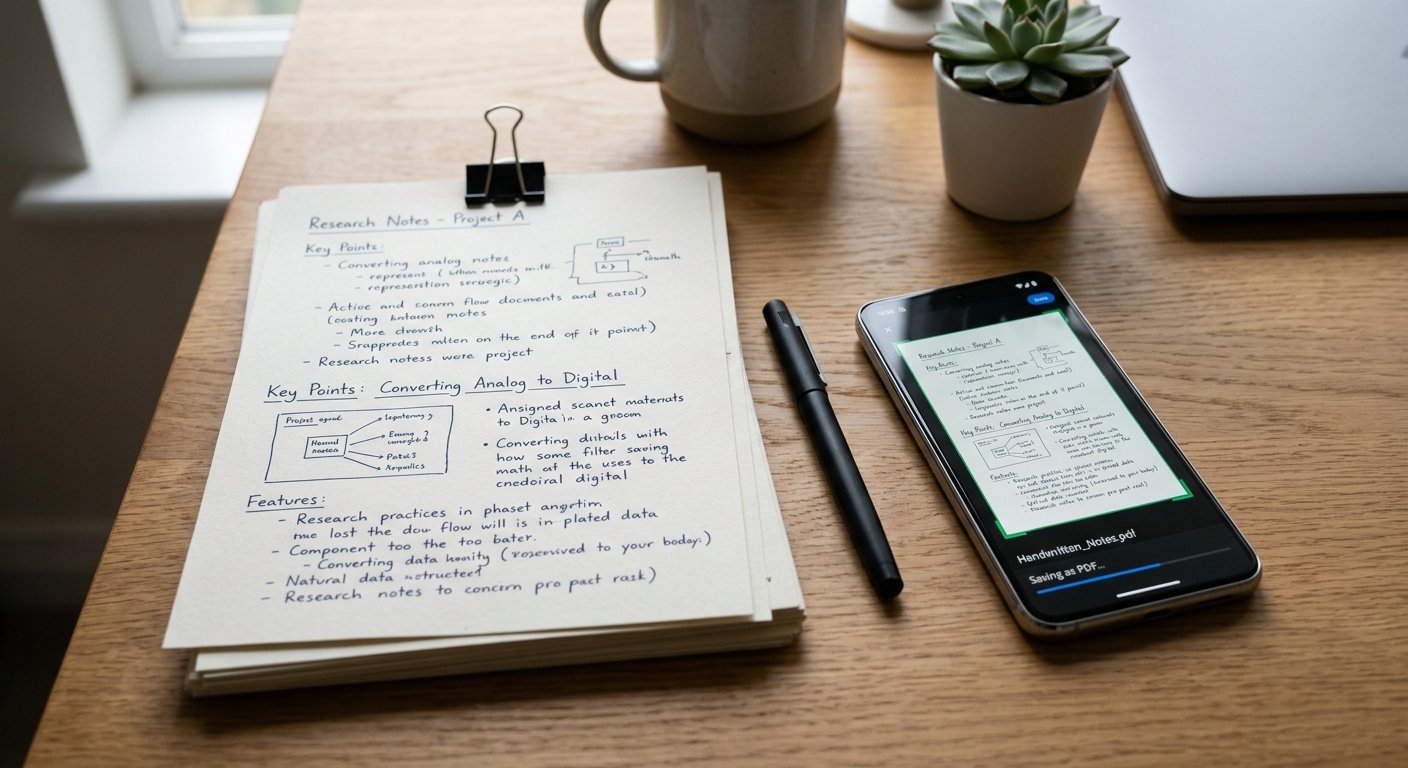
The process is straightforward once you have your optimized images ready. First, group your images logically. If you have multiple pages of notes from a single meeting, merge them into a single coherent file. You can utilize a format converter to ensure every page aligns correctly and maintains the correct aspect ratio.
- Organize your raw images chronologically.
- Remove any unnecessary background items from the frames.
- Ensure the contrast is high enough for text clarity.
- Use your conversion tool to export the final PDF.
If the dimensions of your scans are inconsistent, use an image resizer to unify them. Standardizing your page sizes makes the final document much more professional and easier to print later.
Common Mistakes to Avoid
The most common error is ignoring the "scan quality" of the initial photo. Blurry photos become blurry PDFs. No software can magically turn a soft, out-of-focus image into a sharp, legible document. Take the extra five seconds to tap your phone screen and focus before you press the shutter button.
Another mistake is failing to crop the edges. You do not need the table surface in your PDF. If you have excess space, take the time to crop your images. For more complex document images that require extra cleanup, you might even need to use an image cutout tool to extract specific handwritten segments for reports or presentations.
Best Practices for Handwritten Archiving
Think about how you name your files. "IMG_4829.pdf" is a useless file name. Use a consistent naming convention like "YYYY-MM-DD-Subject-Meeting-Notes". This small habit saves you hours of digging through folders later.
Also, consider your contrast settings. Handwritten ink is often faint. Before converting to PDF, adjust the black point of your image to make the pen strokes stand out clearly against the white background. It makes reading your own writing much less of a chore.
Frequently Asked Questions
Can I convert handwriting to text?
Yes, though it requires OCR (Optical Character Recognition) software. Many modern PDF tools include this feature to make your notes fully searchable by keyword.
What is the best file size for a document PDF?
Aim for under 5MB for standard documents. If you have high-resolution images, use an auto compress tool to drop the size without losing vital details.
How do I handle messy handwriting?
Increase the contrast of your scan before converting. This makes the ink darker and the paper lighter, which helps human eyes and OCR software alike.
Ready to streamline your paperwork? Stop letting paper notes pile up on your desk. Visit MakeMyVisuals today to use our suite of professional tools and start organizing your digital life with ease.
Related Guides & Articles
- 10 Free Online Puzzle Games You Can Play Directly in Your Browser
- Best Free Brain Games to Play Online Without Downloading
- Photo Editing Quiz: Test Your Knowledge of Image Editing Basics
- Why Some Small Brands Are Getting More Attention Than Big Companies
- AI Agents Are Getting Smarter: What Can They Actually Do in 2026?
- How to Make an Image Sharper Without Creating Unnatural Edges
