How to Convert an Image to a Scanned PDF Online: A Step-by-Step Guide
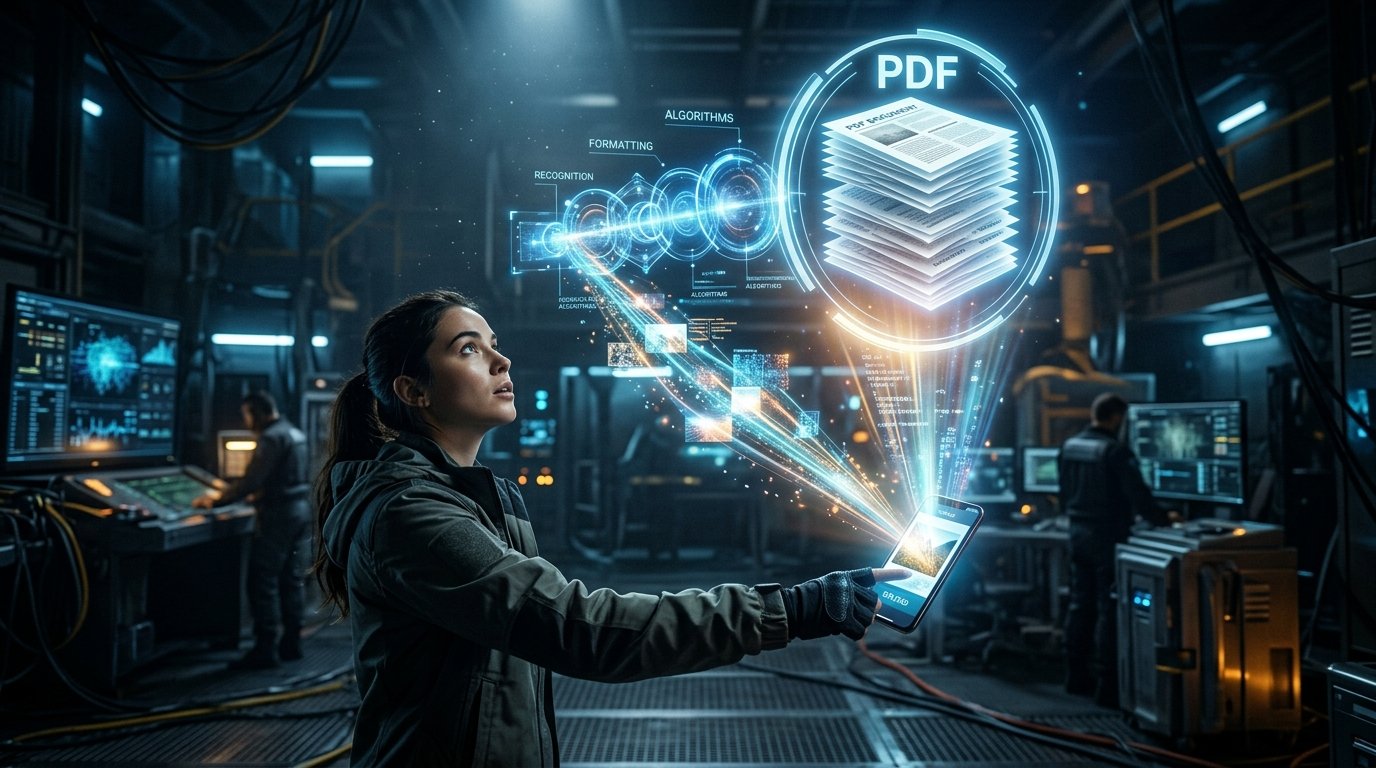
We have all been there. You snap a quick photo of an important document, a receipt, or a signed contract with your phone. But when you look at the image, it is full of shadows, tilted angles, and distracting background clutter. Uploading that raw file to an official portal looks unprofessional and can even get your application rejected.
The solution is simple. You need to convert that image into a clean, properly formatted, scanned PDF. Doing this manually used to require expensive desktop software or clunky hardware. Now, you can achieve professional-grade results directly from your web browser.
This guide walks you through the exact process to scan documents online, fix visual flaws, and generate flawless PDFs every time.
Why Raw Images Fail Official Portal Requirements
Most official government, corporate, and educational platforms reject standard image formats like JPG or PNG. They require PDFs. But simply changing the file extension does not fix the underlying issues of a smartphone photo.
Standard photos suffer from poor lighting and warped text. If you are handling upscan or UPSC document preparation, or sizing files for an ssc form photo resize, strict guidelines apply. Portals look for clean borders, high contrast, and legible text.
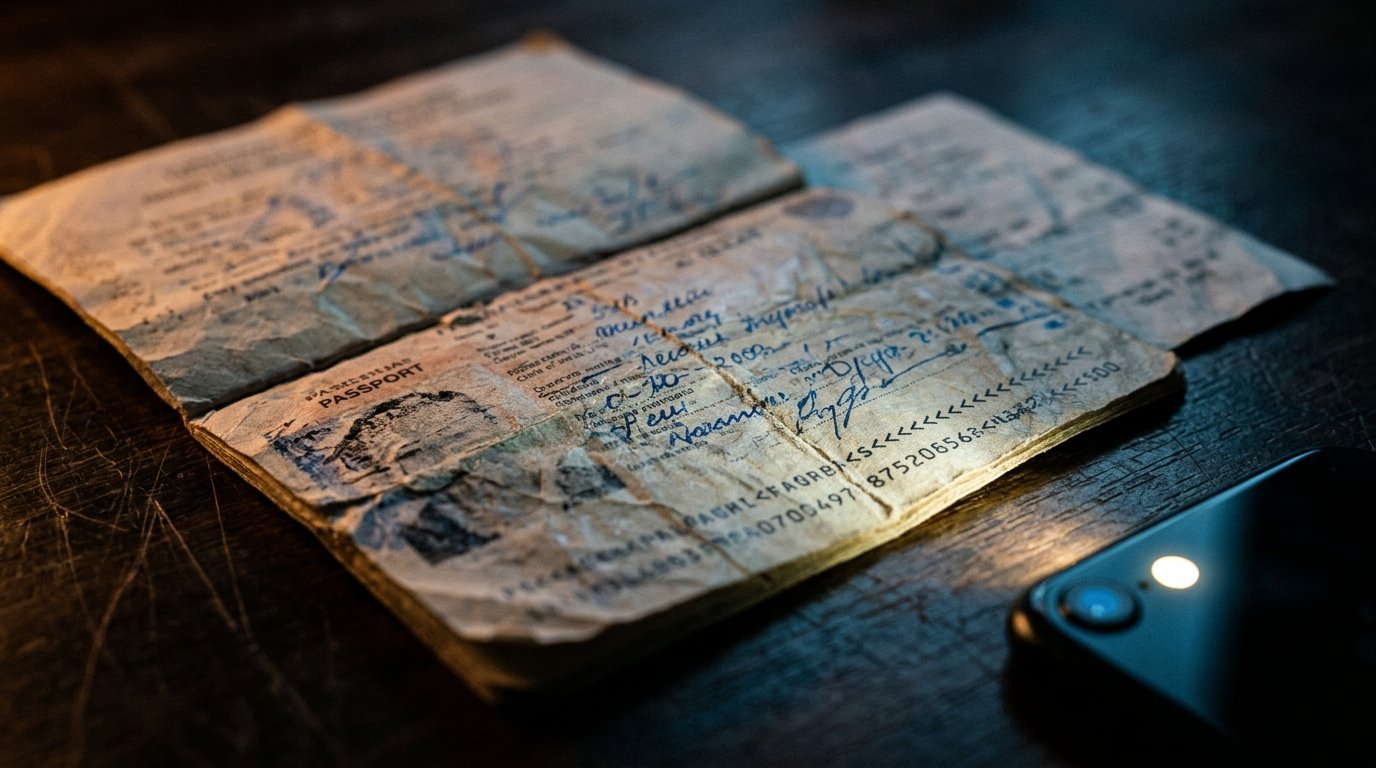
A dedicated document optimizer fixes these problems. It applies perspective correction to straighten skewed pages. It uses a text clarity booster to eliminate shadows and make words pop. The final file looks like it came from a high-end flatbed scanner, not your living room coffee table.
Step-by-Step: Convert an Image to a Scanned PDF Online
Transforming your images into professional documents takes less than a minute when you follow this streamlined process.
Step 1: Prepare and Upload Your Image
Start with the best possible source file. Lay your document on a flat, contrasting surface. Ensure decent lighting to minimize harsh smartphone shadows. Once captured, open your online PDF maker tool. Drag and drop your file into the upload zone. A quality tool handles various formats, allowing seamless JPG to PDF or PNG to PDF conversion.
Step 2: Apply Auto-Enhancement and Correction
Do not just convert the raw file. Use an AI document scanner interface to clean the visual data. The tool should automatically detect the edges of the paper, cropping out the table or background. It then applies a scanned image enhancer filter. This process balances the white levels, deepens the black text, and wipes away gray shadows.
Step 3: Optimize Document Layout and Size
If you are combining multiple images, arrange the pages in the correct chronological order. For official forms, file size matters just as much as clarity. Government portals often cap uploads at 200KB or 500KB. Run your file through an official portal upload tool to compress the data without degrading readability.
Step 4: Download the Scanned PDF
Review the final preview. Make sure all text is sharp, legible, and straight. Click the generate button to finalize the file. Download the optimized PDF directly to your device, ready for hassle-free submission.
Common Mistakes to Avoid When Digitizing Documents
Many people ruin their digital documents before they even hit the upload button. Avoid these frequent pitfalls to save time and frustration.
Ignoring the Edges: Leaving your thumb, desk, or carpet in the frame looks sloppy. Always crop tightly to the document borders.
Over-Compressing Text: Excessive compression creates pixelated text. If a human cannot read the fine print, an automated portal system definitely will not.
Skipping Contrast Correction: A gray background with dark gray text strains the eyes. Turn on the text clarity booster to ensure a stark white background.
Uploading Wrong Dimensions: Passports, ID cards, and certificates have unique aspect ratios. Squeezing them into standard letter sizes warps the vital details.
Best Practices for Perfect Online Scanning
Consistent, high-quality results rely on a few simple habits. Treat your smartphone like a portable scanning bed.
First, hold your camera directly parallel to the paper. This reduces extreme angles and minimizes the heavy lifting required for perspective correction. Second, use natural daylight whenever possible. Overhead room lights create harsh hand shadows directly over the text.

Finally, leverage specialized tools for specialized tasks. If you are processing a driver's license, use a dedicated ID card scanner mode. For travel papers, a passport scanner setting handles the reflective holographic overlays cleanly. For business expenses, a receipt scanner online tool focuses on capturing faint thermal ink.
How MakeMyVisuals Perfects Your Documents
You do not need separate applications for editing, resizing, and converting. MakeMyVisuals offers a comprehensive suite of visual tools designed to streamline your document workflow.
Our specialized tool, the
Need to adjust specific dimensions before conversion? Use the
Frequently Asked Questions
Can I convert multiple images into a single PDF document? Yes. A robust online PDF maker allows you to upload multiple JPG or PNG images at once, reorder them sequentially, and compile them into a single multi-page PDF file.
Will my document text remain sharp after converting from JPG to PDF? It depends on the tool used. A basic converter just changes the wrapper. An advanced tool utilizing a text clarity booster actively enhances the contrast, ensuring the text remains sharp and legible.
How do I make a photo look like an actual scanned document? You must remove background clutter, flatten the perspective, and increase the black-and-white contrast. Using an online tool with a scanned image enhancer filter achieves this effect automatically.
Is it safe to upload my personal certificates and ID cards to online scanners? Security matters. Always choose trusted platforms that process your files securely and delete them from their servers automatically after processing to protect your data privacy.
Ready to turn your messy photos into flawless, portal-ready documents? Try the
Related Guides & Articles
- GTA 6 Launch Guide Reveals the Settings PS5 and Xbox Players Should Change First
- 10 Free Online Puzzle Games You Can Play Directly in Your Browser
- Best Free Brain Games to Play Online Without Downloading
- Photo Editing Quiz: Test Your Knowledge of Image Editing Basics
- Why Some Small Brands Are Getting More Attention Than Big Companies
- AI Agents Are Getting Smarter: What Can They Actually Do in 2026?
