How to Compress a PDF to 300KB Without Making It Unreadable
Why Small File Sizes Matter in Modern Workflows
You’re staring at a government portal. You hit the "upload" button, and the screen sneers: file size limit exceeded. Most scanners churn out bloated digital sludge that looks fine on your desktop but chokes the moment it touches a web server.
Shrinking these files often leaves you with a blurry, unreadable mess. Nobody wants to submit a document that looks like it was captured by a potato. You need to strip the digital dead weight while keeping the text sharp enough to read.
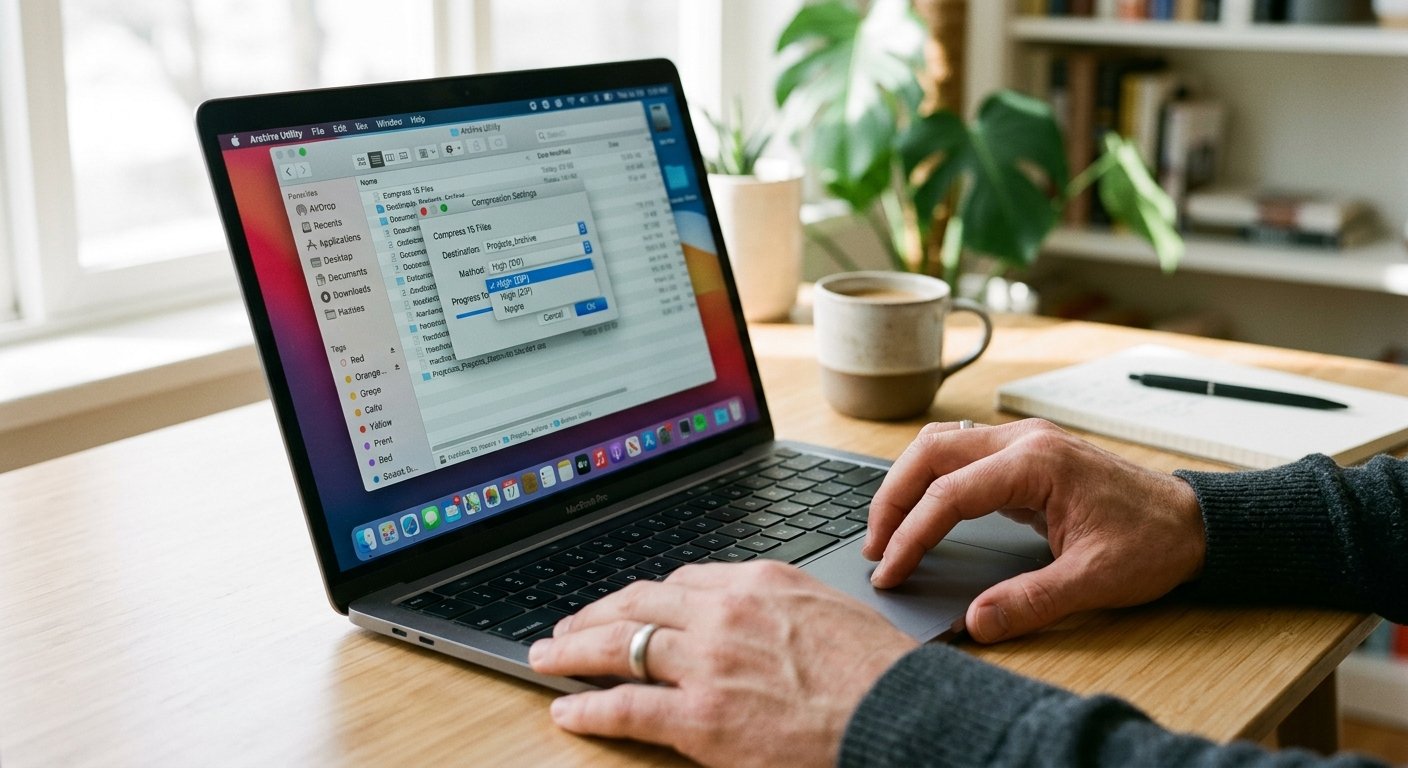
Compressing a PDF down to 300KB means murdering unnecessary metadata and nuking bloated image resolution. High-resolution shots are the primary culprits. Using an intelligent document assistant keeps your content crisp without the bloat.
The Anatomy of a Bloated PDF
Why is your PDF so massive? It’s rarely the text; it’s those unoptimized photos and high-res color graphics hogging the memory. Your computer saves every bit of resolution, even if you’re never going to print it on a billboard.
Adding to the fire are useless fonts and overly complex vector paths. If your document is choked with heavy images, run them through a format converter first. Manual optimization is a nightmare. Automate the work and save your sanity.
Step-by-Step Guide to Effective Compression
Hitting that 300KB ceiling takes a bit of strategy. Start by dumping high-res background assets you don’t actually need. Using an AI background remover simplifies the mess before you export.
Adjusting your DPI matters. Drop it to 72 or 150 for web viewing, and stop using 300 unless you’re sending it to a professional printer. Flattening your layers helps too. It kills the transparency headaches that slow down PDF readers.
Letting a dedicated auto compression tool handle the heavy lifting is faster. It does the math for you. Total precision.
Common Mistakes That Kill Readability
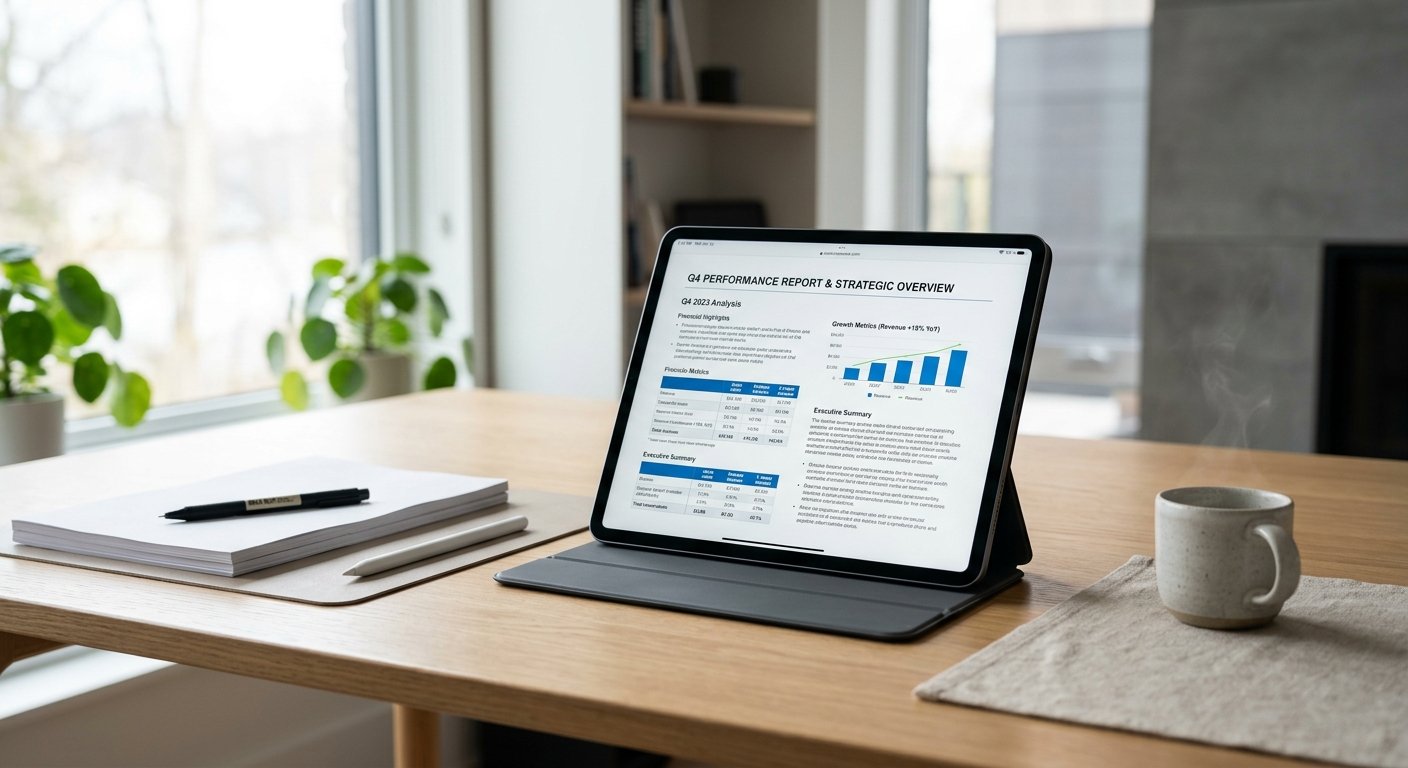
Blindly dragging a quality slider to zero is a trap. You’ll get under 300KB, sure, but your text will look like a smudged watercolor painting. Check your output before you hit send. Pixels don't lie.
Ignoring color space is another rookie blunder. Keep digital files in RGB to save space. CMYK is for physical ink, not digital screens. Stop wasting bytes on profiles your audience will never notice.
Enhancing Your Workflow Beyond PDFs
Document management is only one gear in your machine. You’ll need an image resizer for catalogs and web assets too. Use a product studio to keep your branding from looking like an amateur collage.
High-quality visuals make you look competent. Fast-loading images keep your audience from clicking away. Aim for instant load times, not massive, sluggish files.
Frequently Asked Questions
Can I compress a PDF to 300KB without losing any text clarity?
Absolutely. Focus on optimizing the images instead of mangling the fonts. It keeps your text sharp.
What if my document contains complex graphics?
Convert the heavy pages into compressed JPEGs first, then re-assemble them into a PDF. The size savings are huge.
Is it better to use online or offline tools?
Online tools like those on MakeMyVisuals handle the heavy lifting in the cloud. Your computer stays fast. It's just smarter.
Take Control of Your Documents Today
You don't need to fear upload limits anymore. By automating the grunt work, you keep your professional grade in a tiny, manageable package. Ready to stop fighting your files? Visit MakeMyVisuals to grab the tools you need.
Related Guides & Articles
- GTA 6 Launch Guide Reveals the Settings PS5 and Xbox Players Should Change First
- 10 Free Online Puzzle Games You Can Play Directly in Your Browser
- Best Free Brain Games to Play Online Without Downloading
- Photo Editing Quiz: Test Your Knowledge of Image Editing Basics
- Why Some Small Brands Are Getting More Attention Than Big Companies
- AI Agents Are Getting Smarter: What Can They Actually Do in 2026?
